 Krevaya
More ways to make content in Studio
A campaign often needs more than one finished post. You might need the same layout with different names, a short recording to explain an idea, or a teammate to help with the details. October’s Studio additions make those jobs easier to handle in your design.
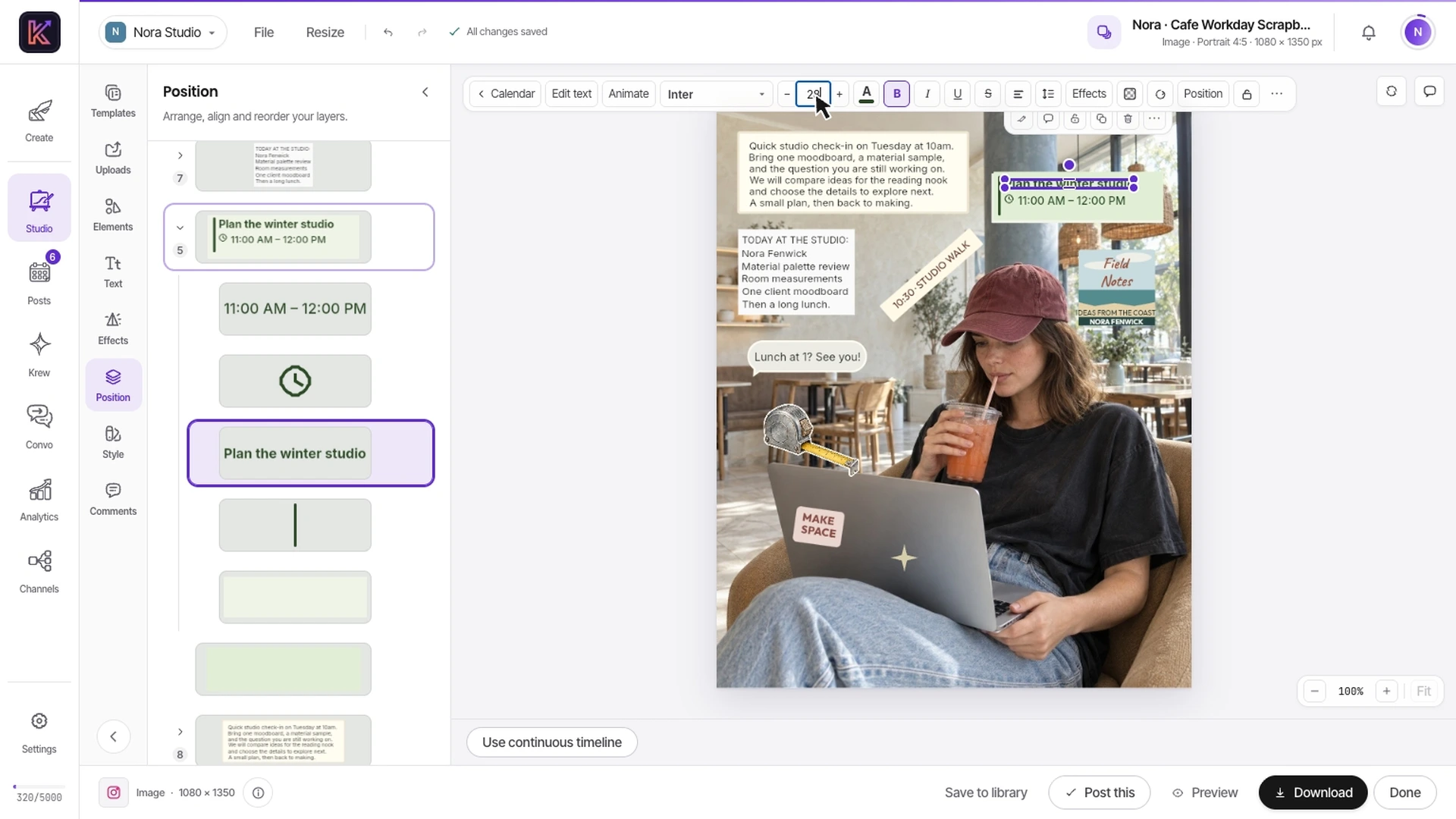
- Use your own brand fonts. Open Text → Your brand fonts to upload a supported TTF, OTF, or WOFF file and use it in editable text. Your uploaded font is used in the editor and the exported design.
- Create variations from a spreadsheet. Choose File → Bulk create, import CSV or XLSX, and connect columns to text and image layers. Review the rows, then create up to 100 independent designs from your saved source. You can choose images from your library for individual rows.
- Record source material where you work. In Uploads → Videos, record your camera or screen, with an optional microphone. Recording supports clips up to five minutes, subject to your browser’s permissions and capture support.
- Work on a shared design together. Collaborators with edit access can see live cursors and make independent changes. When two people change the same field, Studio asks you to review the conflict before resolving it.
Each bulk-created design remains editable. Check longer replacement text and each image crop before exporting your campaign. Shared editing continues to follow your brand’s access and editor-seat permissions.
Give the words, picture, and sound their own timing
Studio’s recent motion updates add more control over how a short video comes together. Animate text and other layers, adjust when they appear, trim and split footage, and set the soundtrack’s volume and fades. Preview the result on the timeline before exporting.
You can still start with a template, your own media, or a blank design. When the design is ready, choose Post this to bring it into the composer, add a caption, and choose your connected channels.
Keep the conversation in Krew
Ask Krevaya now opens its conversation in Krew, where your assistant is called Krevaya AI. Your request and the answer stay in the page, making it easier to continue with a follow-up.
Ask for content ideas, get help with a supported task, or paste an article or YouTube link to turn it into drafts. Recent activity helps you find work that is ready for review. Routines also remain on Krew for recurring drafts.
Requesting drafts does not itself publish them. Your publishing actions and the brand’s publishing mode still determine what goes out.
Get to know Krew and Ask Krevaya.
Account Spy is now Krevaya Radar
The feature previously called Account Spy has a new name: Krevaya Radar. Find it under Analytics → Benchmarks & Radar.
Radar checks tracked creators and brands every few hours and highlights posts performing at about three times that account’s recent engagement baseline, with a minimum engagement threshold. Use those posts to study a topic, format, or opening that could inform your next idea.
Radar is included from the Plus plan. Alerts need usable post metrics and an account baseline; Threads profiles can be tracked, but their snapshots do not provide the per-post metrics needed for breakout alerts.
A clearer view of your channels
Channels also has an optional graph view that connects your workspace, brands, and accounts. Expand a brand to see its connections, then use the account’s actions to manage it. The list view remains available when you want to scan accounts by platform.
Open Channels to check your connected accounts, or browse the public directory for formats and availability.
Open your workspace and try the updates on your next design or draft. If you’re new to Krevaya, create your account and choose a plan to get started.