












Creators and small businesses
Ask Krevaya AI for a topic, a draft, or a creation. Check it in the review queue and put it on the calendar. One brand or several, in one workspace.
Turn your ideas into posts worth sharing. Create images, carousels, and videos, make every detail yours, and schedule across 34 channels. Work with Krevaya AI or do it yourself. You have the final say.
Two ways to get your content out into the world.
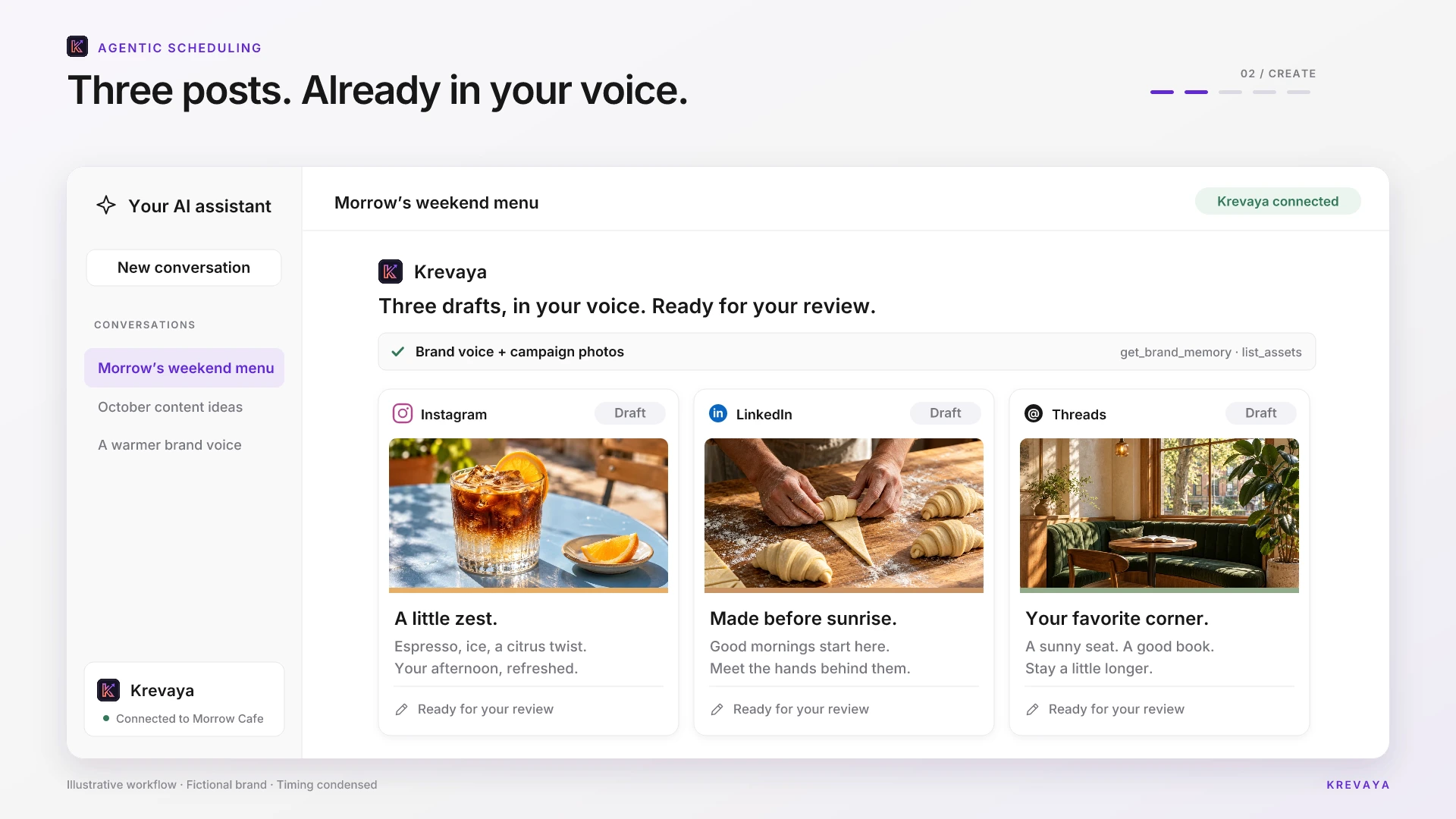
Give your AI the brief. Review the drafts. Approve the plan.
Illustrative workflow · 28 secondsAn illustrative AI conversation connected to Krevaya creates three Morrow Cafe posts using campaign photos. The user reviews the drafts, explicitly approves them, and asks the agent to schedule them. The posts appear in Krevaya’s calendar as scheduled.
Krevaya AI
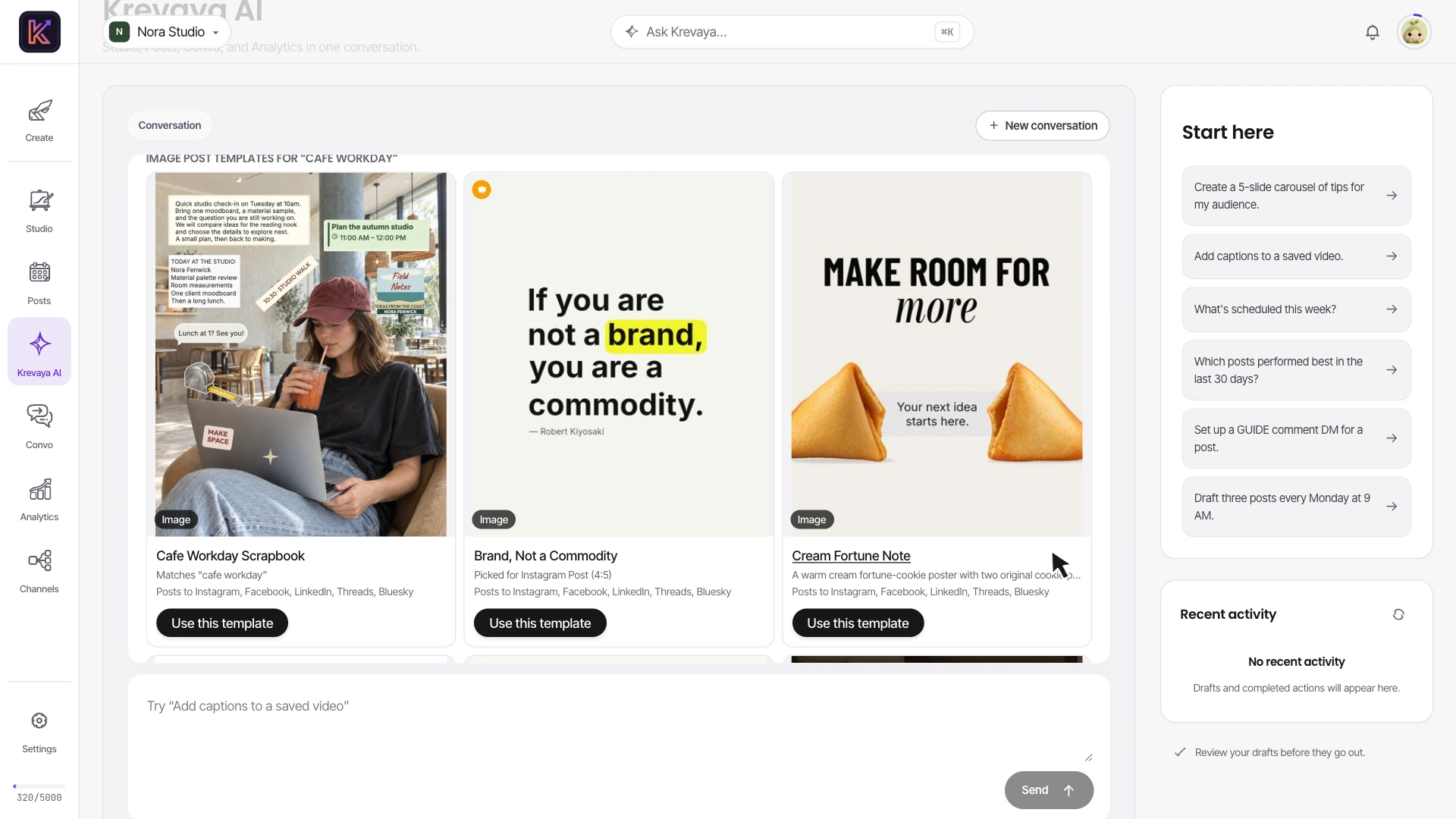
Ask for a template. Explore the creations in chat, then make your favorite your own in Studio.
From a template request to your own editable creation.
Sample content · timing condensedIn a fictional Nora Studio workspace, ask Krevaya AI to find image templates for a cafe workday. Explore the template tiles inside Krevaya AI’s chat, preview Cafe Workday Scrapbook at its portrait size, then choose “Use this template.” The creation opens in Studio with 43 editable layers. Select the calendar title and change “Plan the autumn studio” to “Plan the winter studio,” keeping the photos, layout, and other details. The creation stays in your workspace for editing; nothing is published.
Krevaya Studio
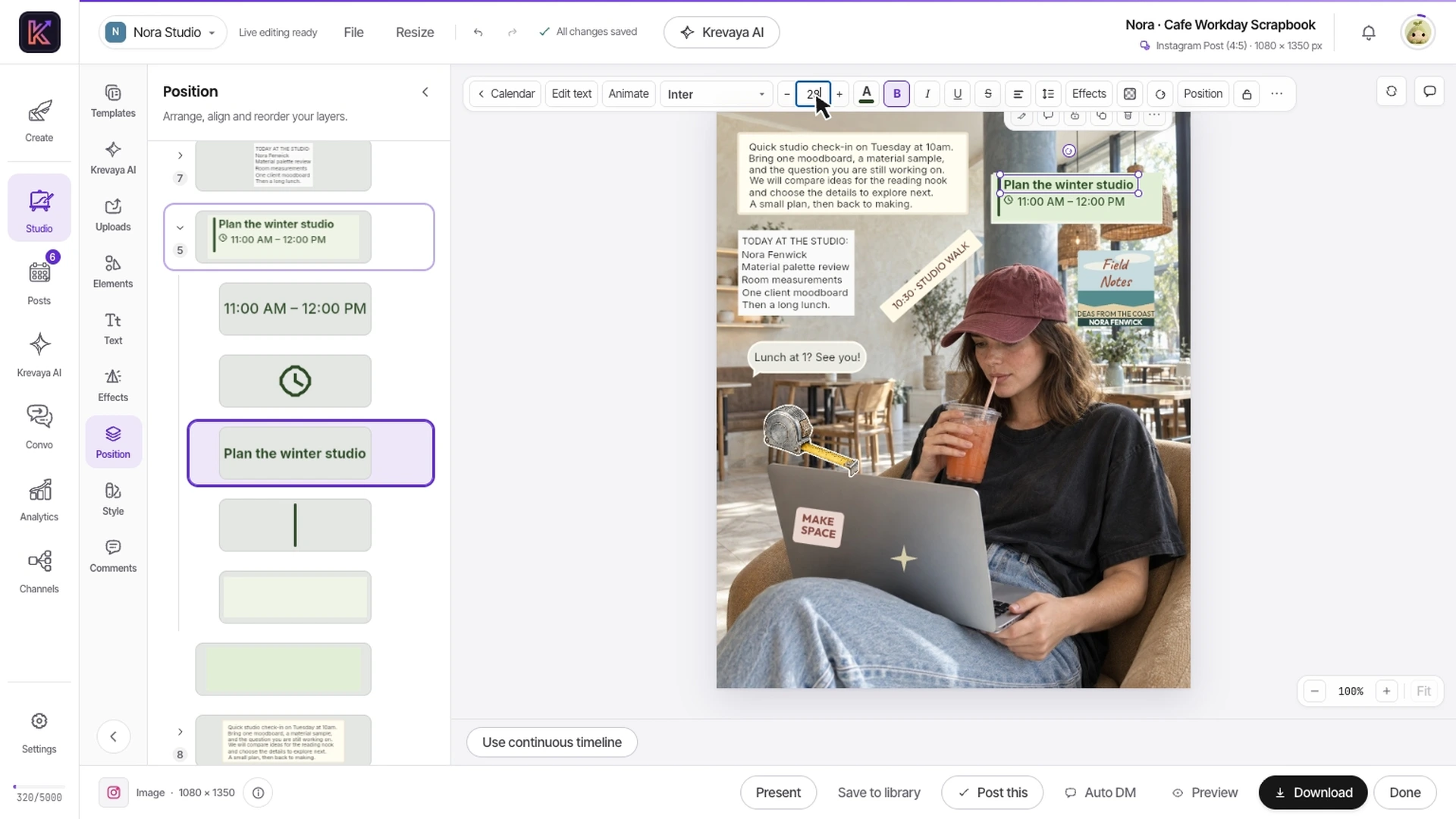
Some changes are faster by hand. Make them yours in Krevaya Studio.
From editable layers to a finished video. You’re in control.
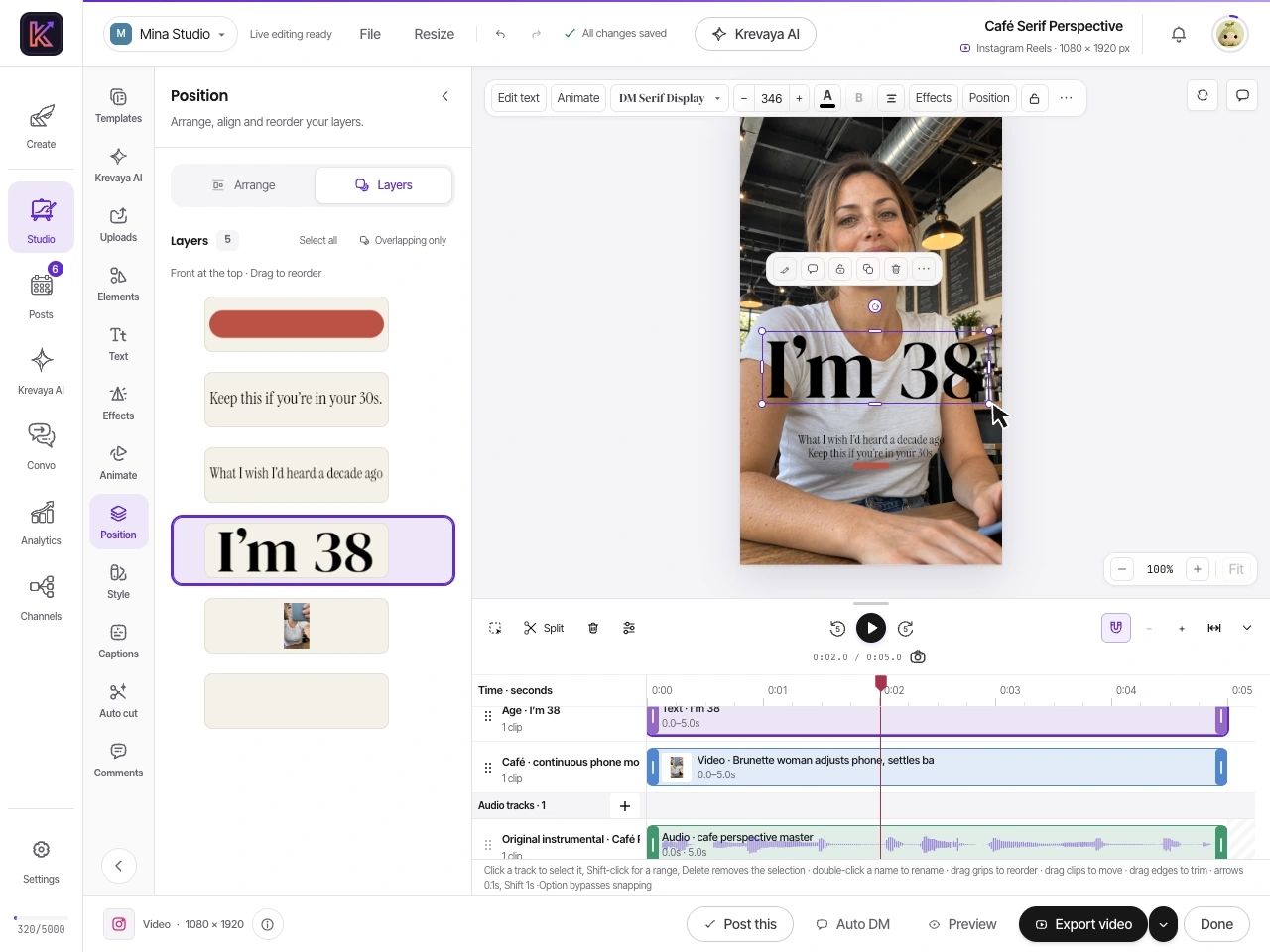
Recorded in Studio · Sample projectsFollow two real templates through Krevaya Studio. Rewrite a headline, resize and move its independent layer, and choose an image download size in Cafe Workday Scrapbook. Then trim footage, edit and animate text, adjust audio and fades, and start a video export in Café Serif Perspective. These hands-on edits do not use AI credits.
Krevaya AI in Studio
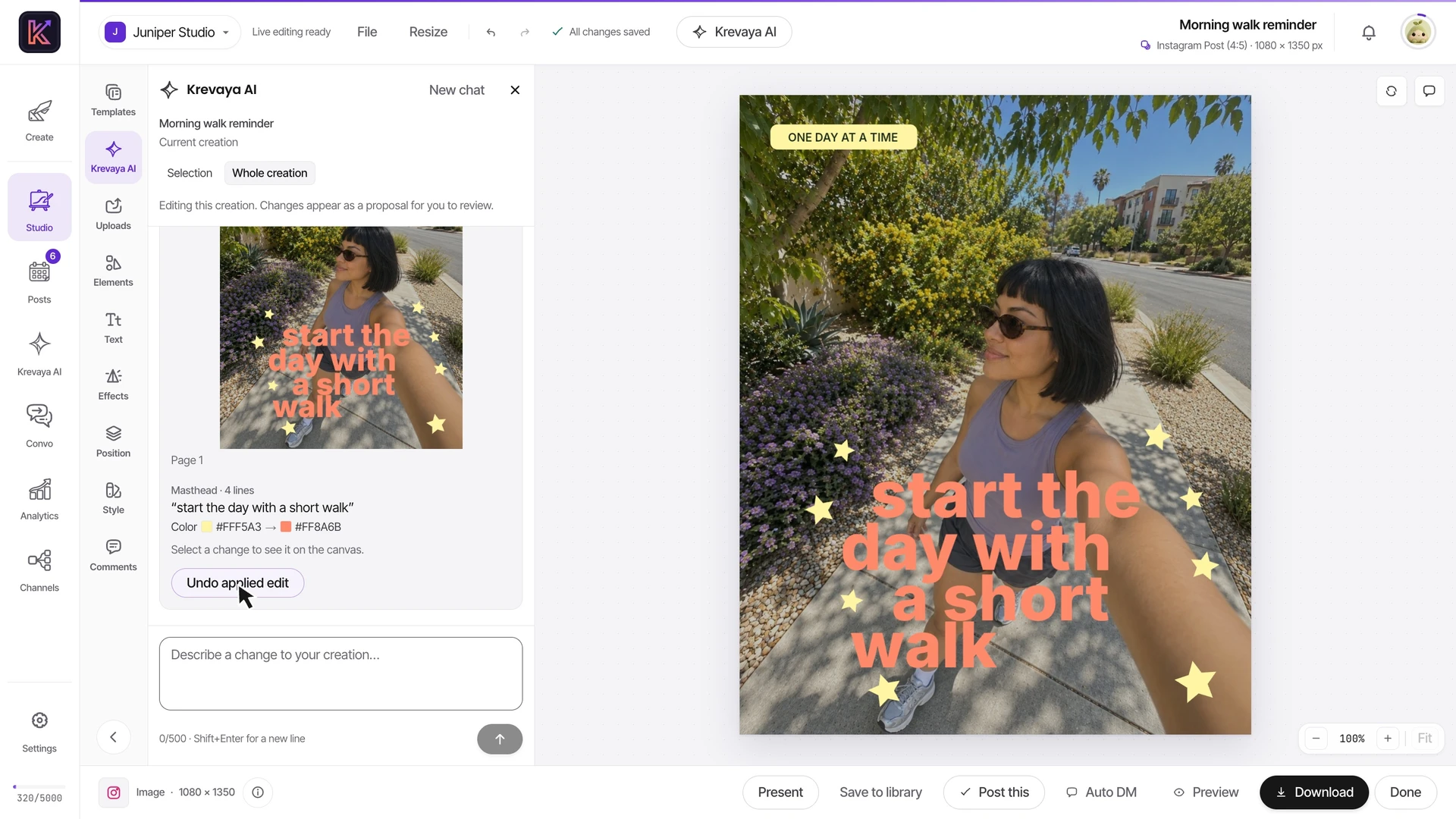
Describe the edit in Studio. Krevaya AI changes the layers already there, shows you a preview, and waits for you to apply it.
Images, carousels, and videos. Every change stays an editable layer, and Undo puts it back.
Recorded in Studio · Sample projects · AI edits use AI creditsThree creations edited by asking Krevaya AI in Studio. In Sunlit Step Reminder, the request “Change the headline to ‘start the day with a short walk’” rewrites the four headline lines, and the follow-up “Now make the headline coral” recolors them. In the six-page Lemon Monthly Photo Journal carousel, “Make this my October recap” changes the cover’s month, then on page 6 “Change the closing to Ready for November” updates the closing title and sizes it to fit. In the Sunlit Daily Vlog video, “My day starts at 6am now. Change every time to an hour earlier.” moves the title range and all four timestamps, with a preview frame for each moment. Each proposal lists its changes in words. Pointing at one outlines it on the canvas, and in the video, selecting one moves the playhead to that moment. Each proposal is reviewed before it is applied. Waiting time is shortened in this recording.
Krevaya Convo
They ask for the link. You start a conversation. Turn comments and messages into helpful replies, new leads, and a reason to come back.
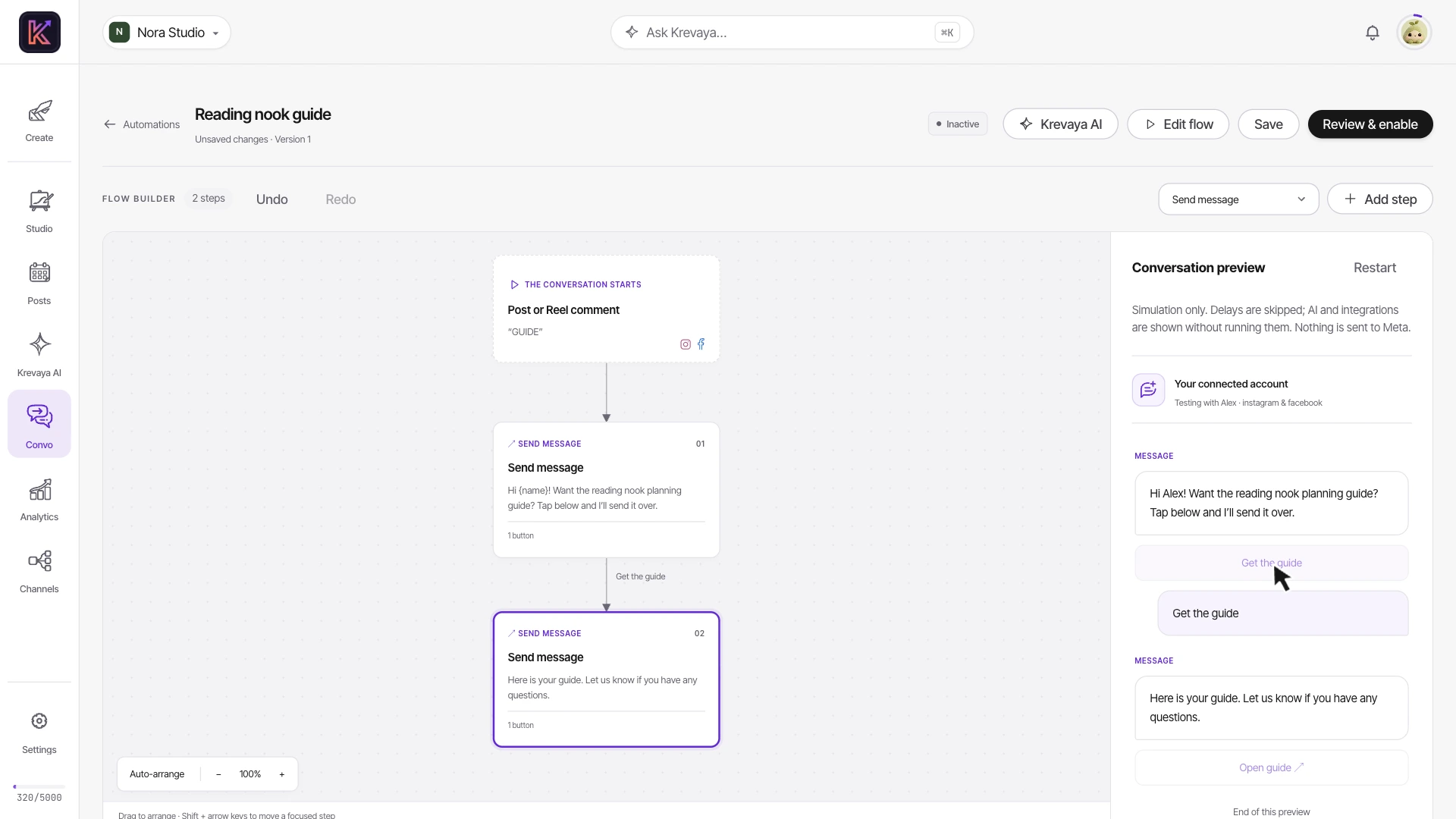
From a keyword comment to the link in their DMs, then the conversation in your team inbox.
Sample content · timing condensedIn a fictional Nora Studio workspace, open Convo and choose New automation, then the Send a resource template. Name the automation “Reading nook guide”, keep the keyword GUIDE, and pick the “Plan the winter studio” post from the recent Instagram posts. Write the opening message with its Get the guide button, then set the link the second message opens. Preview the conversation as Alex: the opening message, the button tap, and the guide link. Review the flow and enable it; with sending set to Auto it shows Live. In the Inbox, Maya Okafor’s conversation shows her GUIDE comment, the two automated messages with the disclosure line, and an open messaging window. The recording uses sample data; no message is sent.
Start with a keyword comment, a DM, or an Instagram Story reply.
Build visual flows, share resources, and collect emails with consent.
Tag contacts and hand conversations to your team in one inbox.
Connect the channels you already use, from Instagram and LinkedIn to Mastodon, Microsoft Teams, WordPress and your newsletter. One calendar, one review queue, every channel.
Ask Krevaya AI for a topic, a draft, or a creation. Check it in the review queue and put it on the calendar. One brand or several, in one workspace.

Already work in Claude, Codex, or Cursor? Connect it through MCP and triage drafts, plan a week, or schedule a reel from the tool you use every day.

Scoped API keys, HMAC-signed webhooks, and a REST API that works in n8n and Make. Everything lands in the same review queue; nothing gets a side door.
See how it works
Start with Krevaya AI, connect Claude or another AI tool, or create in Studio.
Go straight to scheduling, or make changes in Studio first.
 Claude
 ChatGPTCodex
 Gemini
 Cursor
 OpenClaw
 MuseOpenAI dotsClaude Cowork
 Grok Bot
 Perplexity Computer
 ManusCueClaude CodeGemini CLIGrok Build
 Kimi Code
 Hermes AgentClaude Desktop
 GitHub Copilot
 Devin Desktop
 Cline
 Zed
 NanoClaw
 Paperclip
 DeepSeekOpenAI Agents SDK


Create and plan in one Krevaya AI conversation.
“Turn these reminders into a six-slide carousel.”
Modify images, carousels, and videos by hand or with Krevaya AI.
“Make the headline smaller. Keep the photo.”
Check your posts and choose when they go out.
Studio is for images, carousels, and videos. Text-only posts can go straight to Posts.
Here’s your post
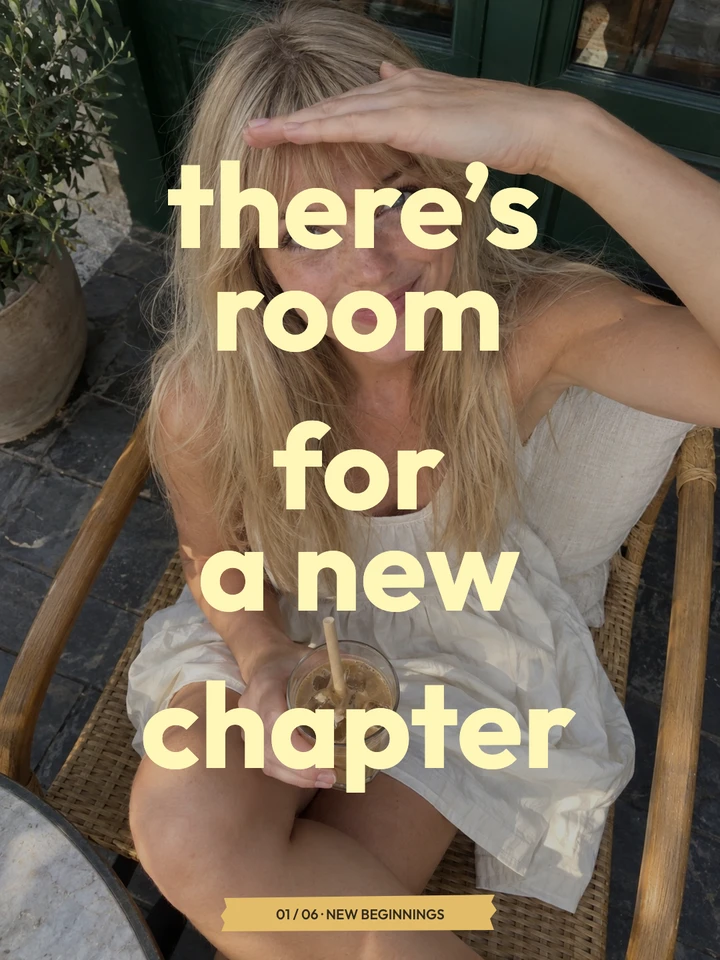 1 / 6
A few reminders I needed this week.
Butter New Beginnings Journal
Review & approve
Choose a time
 margot.fenleyCarousel · 6 slides···1 / 6
Mon · 9:00 AM
Margot FenleyCarousel · 6 slides···1 / 6Tue · 12:30 PM
margot.fenleyCarousel · 6 slides···1 / 6Wed · 10:00 AM
Swipe to see each channel’s version
Use something you made in Studio, with Krevaya AI, or with a connected AI tool.
Creating with Krevaya
Swap a photo, rewrite a headline, or adjust a video. Make the changes yourself or ask Krevaya AI. Preview AI edits before applying them. Every layer stays editable.
See how Studio works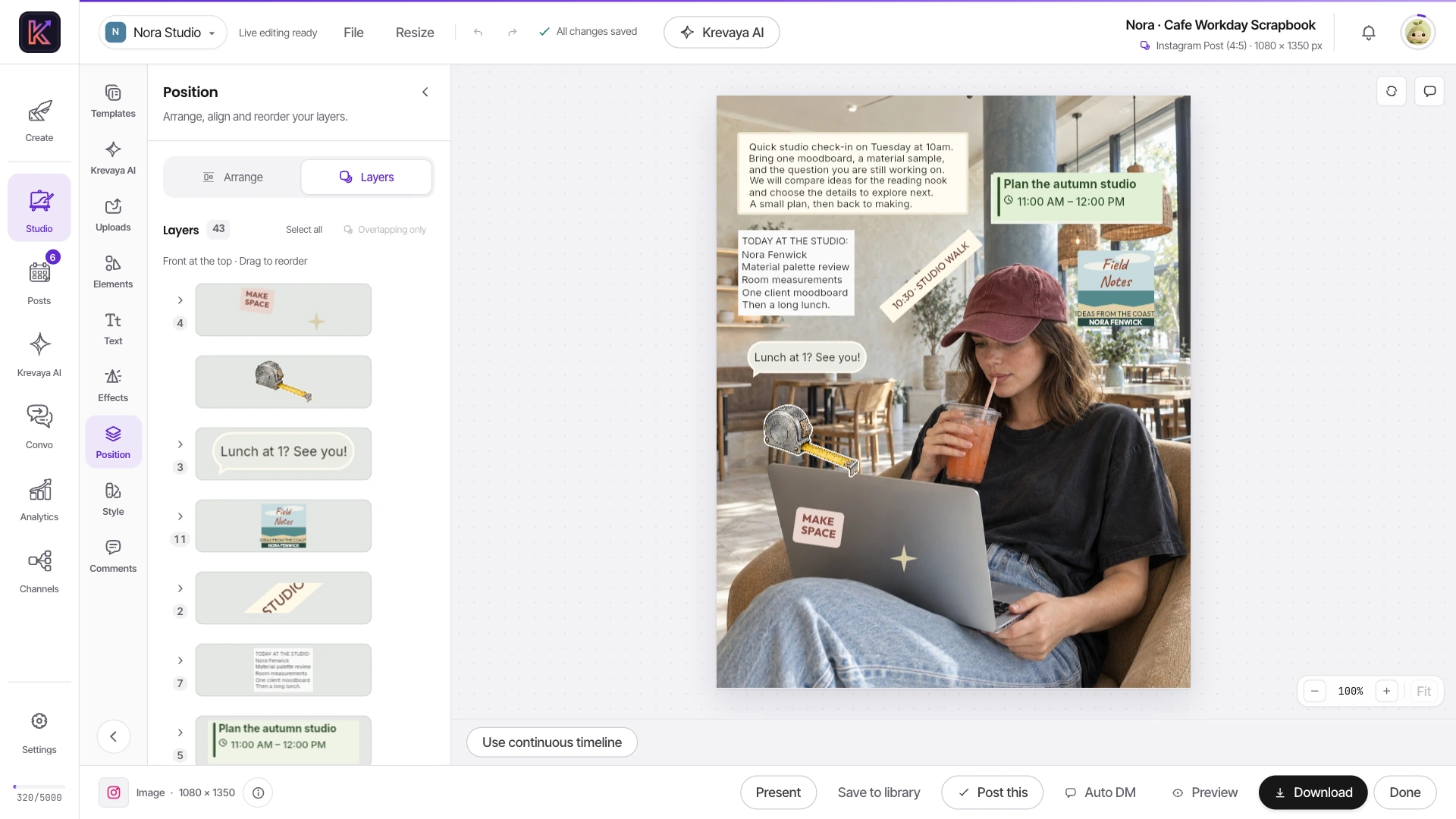
Check how each post looks on your channels, choose a time, and see it on your calendar. You can look over the whole week before anything goes out.
See the calendar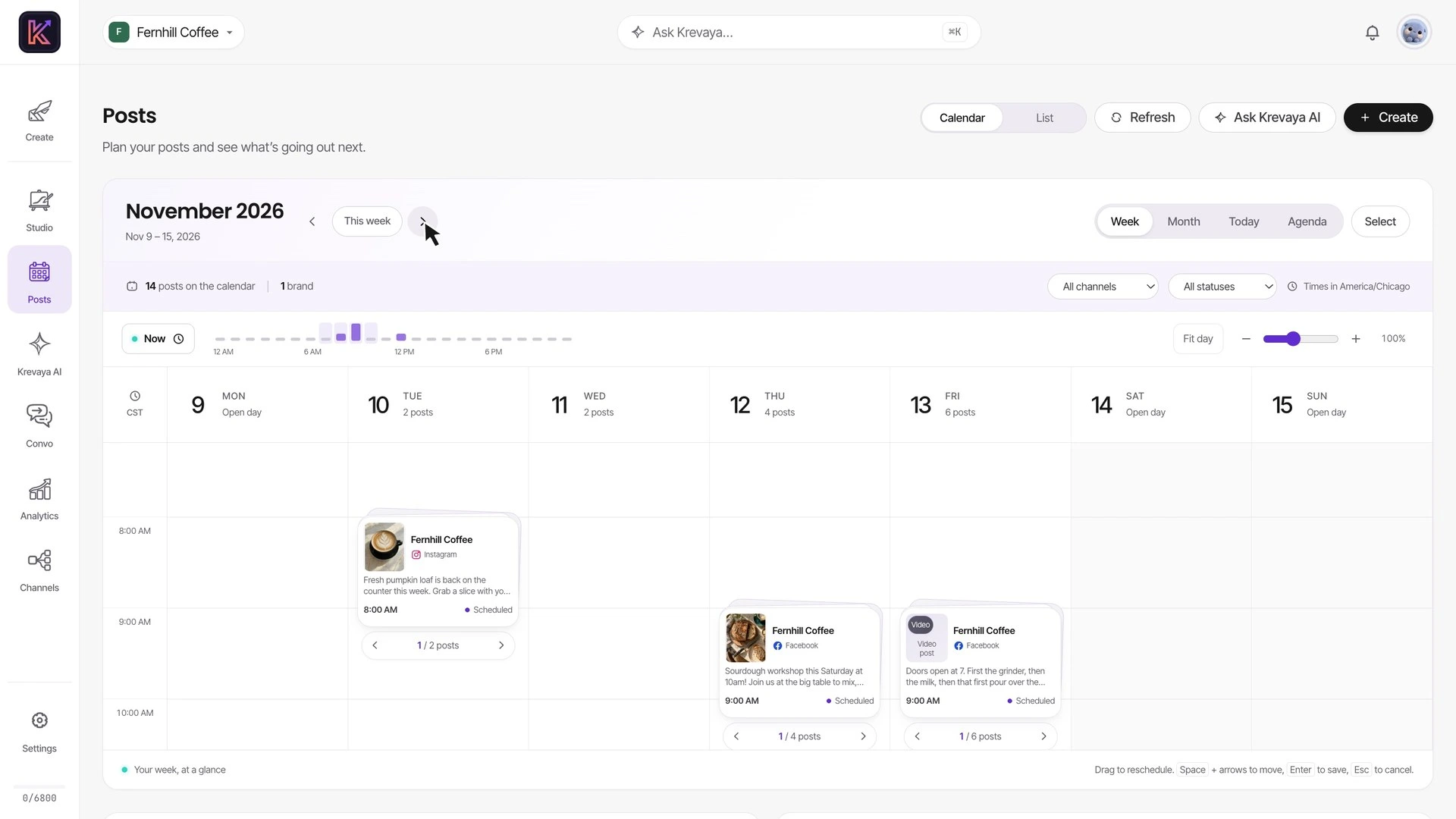
Start with an idea, a few photos, or a rough draft. Ask Krevaya AI for help, make changes in Studio if you like, then review and schedule. You can also work from Claude or another connected AI tool.
See what Krevaya AI can doHelp me write a caption for these new beginnings photos.
Reply to Instagram and Facebook comments with a DM. Share the link they asked for, collect details with consent, and let your team take over when needed.
See how comment-to-DM worksNew comment LINKS, please! ❤️
Start with what you have. Edit as you go. Choose when it goes out.
A launch, a new product, or a topic you know well. Ask Krevaya AI for ideas, bring a link, or start with your own draft.
Nora asks Krevaya AI for cafe-workday image templates, previews Cafe Workday Scrapbook, and chooses Use this template. The creation opens in Studio with editable layers, where she changes the calendar title while preserving the artwork.
Work on the copy with Krevaya AI or your own AI tool. Open the creation in Studio to change the photos, type, and colors.
In the current Studio editor, move and resize the headline, trim the video clip, rewrite the text, and play the result. The sample uses the native Café Serif Perspective video template.
Check each version, choose the channels, and set a time. Krevaya publishes the approved posts on your schedule.
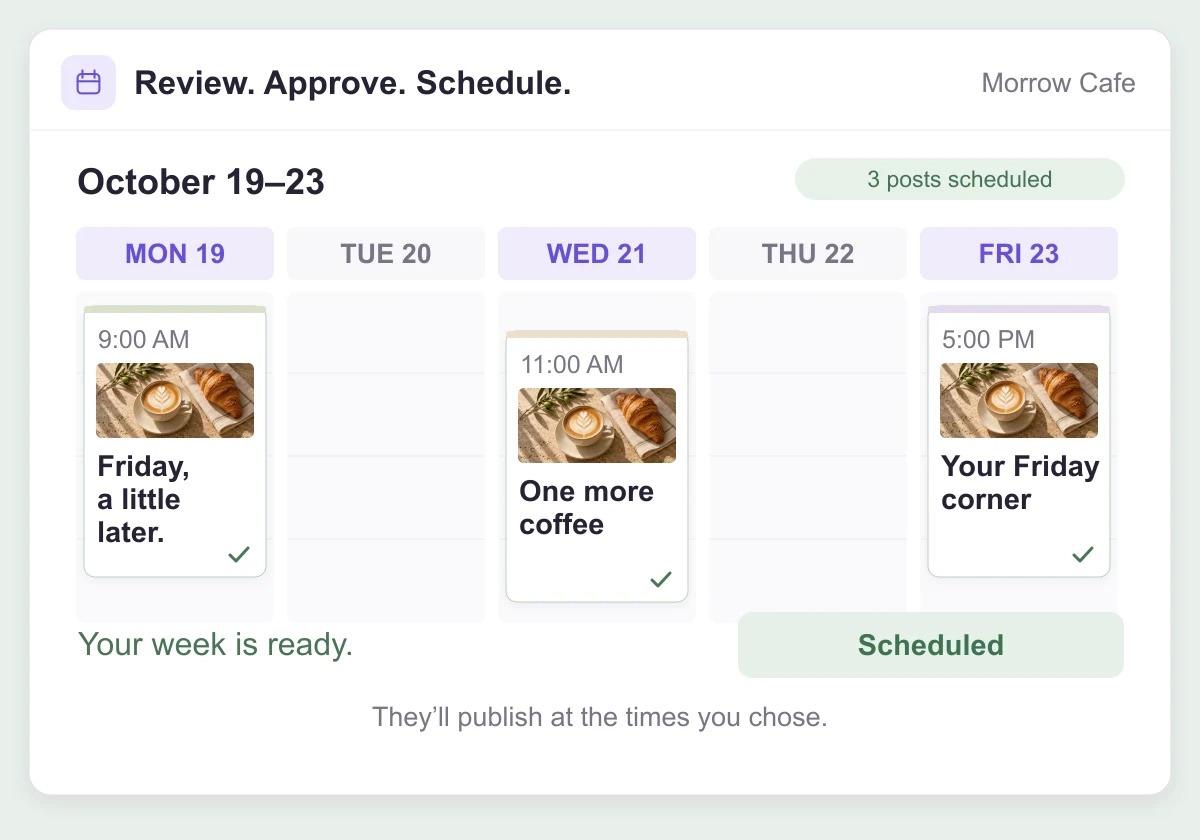
Three cafe drafts are reviewed and approved, then explicitly scheduled. The posts appear across the week on the calendar, ready for their scheduled times.
Each step takes about a minute, and you can skip any of them. Connecting your own AI tool is optional.
Illustrative demos with sample content.
For businesses, creators, and personal brands.
Explore carousels, infographics, everyday stories, and more.
A selection from Krevaya Studio. Templates marked Premium are included with paid plans.
Browse all templatesMake your everyday social content and schedule it from the same place.
You may not need separate design and scheduling subscriptions.
 Canva
 Photoshop
 CapCut
 Premiere
 Buffer
 Hootsuite
 Postiz
 Post Planner
 Manychat†
Comparisons cover everyday social content; advanced photo and film work may still need specialist tools. † Instagram and Facebook DM workflows; WhatsApp, SMS sending, and Follow-to-DM are not ready yet. Coming soon. Plan limits apply. External AI subscriptions are separate.
Research, drafts, design, scheduling, and a way to see what worked.
Approve a post once and schedule it to any of 34 channels, from Instagram and LinkedIn to Mastodon, Microsoft Teams and your newsletter. Best-time suggestions come from your own engagement history, not a generic chart.
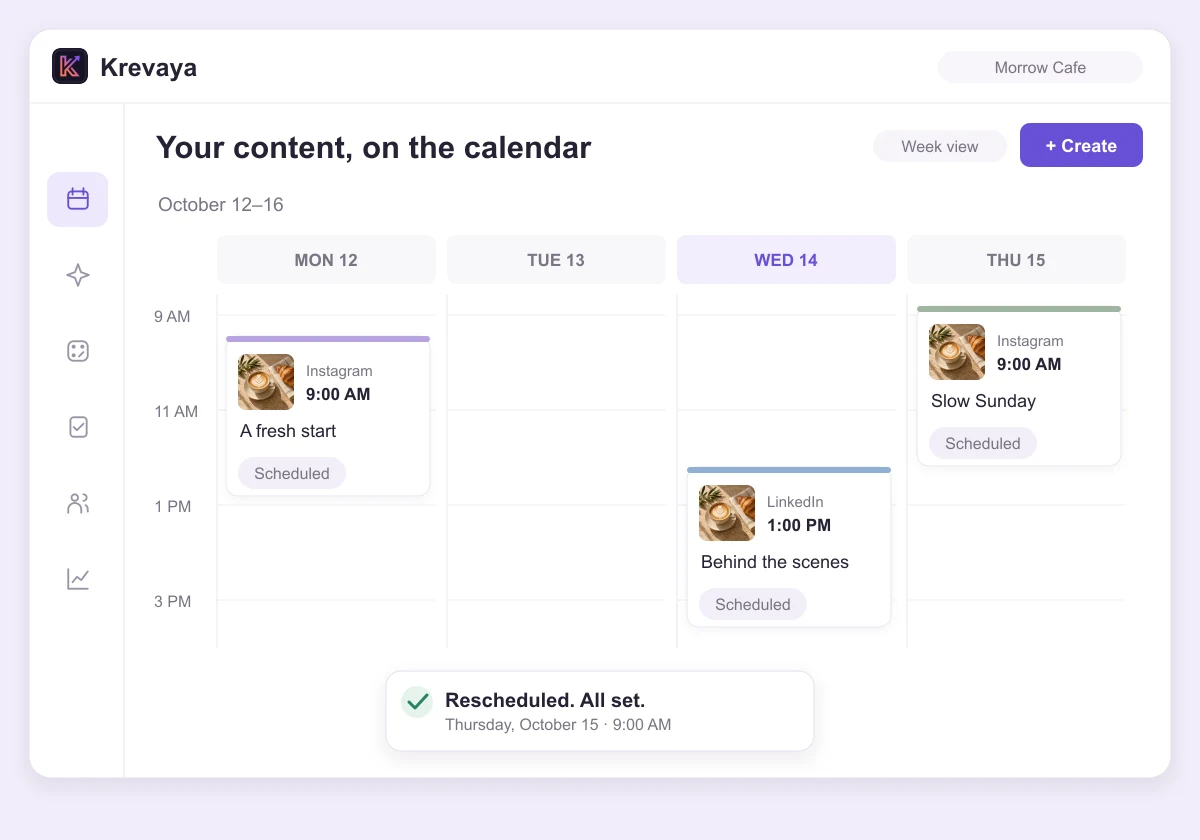
See the calendarAn illustrative Krevaya calendar. A scheduled cafe post is dragged from Tuesday afternoon to Thursday at 9 AM. Its time updates and a rescheduling confirmation appears.
One assistant, Krevaya AI, drafts posts, plans your week, and answers questions about your content. Routines draft on a schedule, from a feed, or when a post takes off, and every draft waits in Posts for your review.
See RoutinesMenu posts twice a weekOn
Mondays and Thursdays at 9:00 AM
3 posts about our seasonal menu to the Visual lineup
Lands in Posts for review.
Keep a hit goingOn
When a post reaches 100 likes within 24 hours, draft 2 follow-ups for Instagram and Threads
Lands in Posts for review.
Start from a template, swap the photos and copy, and edit every layer. One switch applies your brand colors. Bring images, carousels, video, and audio together in one editor.
Explore StudioA recording of the current Studio editor. Edit the text and position of an independent layer in Cafe Workday Scrapbook, then trim footage, edit and animate text, adjust audio, and start an export with Café Serif Perspective. Both are real Studio templates shown in their authored colors.
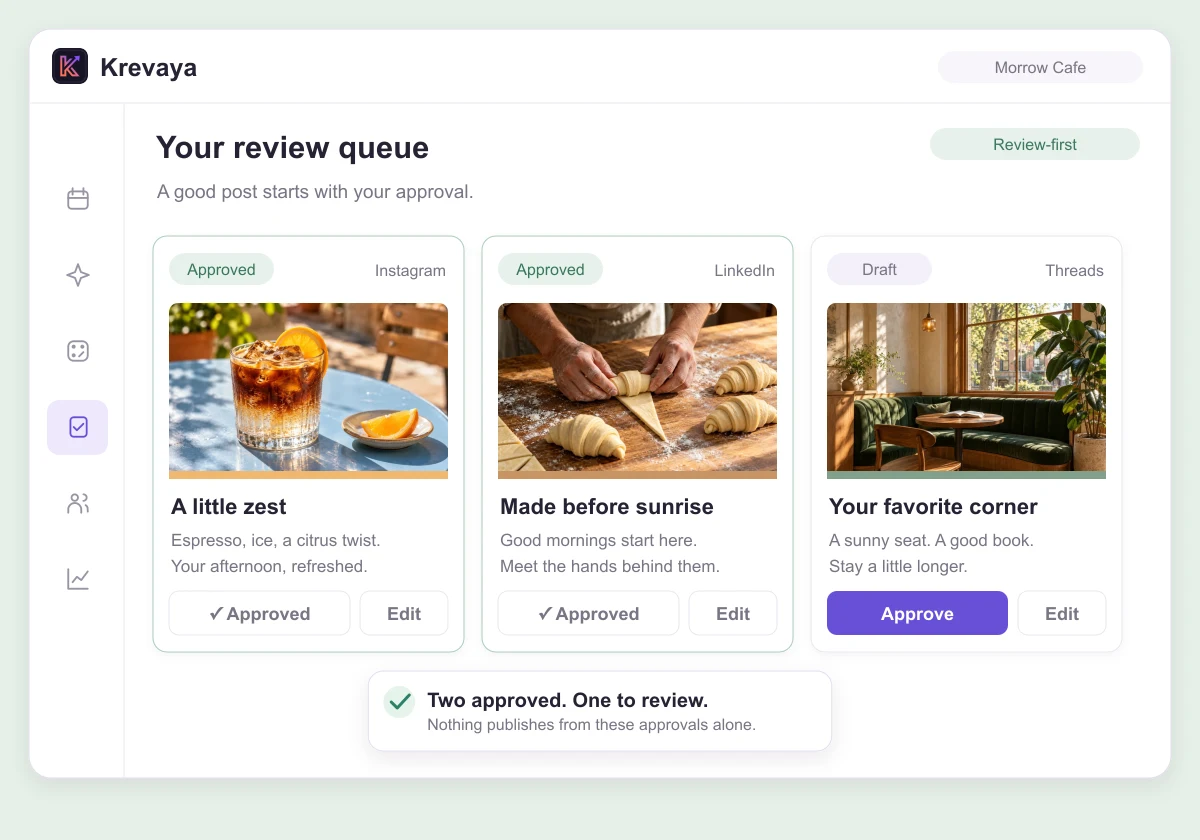
Every draft lands in a queue. Approve, edit, or reject each channel's version on its own. Auto-publish is opt-in per brand, and you can switch it back off any time.
See the review queueThree distinct cafe posts wait in the review queue: a citrus espresso on Instagram, a baker making pastries on LinkedIn, and a sunlit reading corner on Threads. A cursor approves the first two individually. The third remains a draft; approving the others makes them ready to schedule without publishing them.
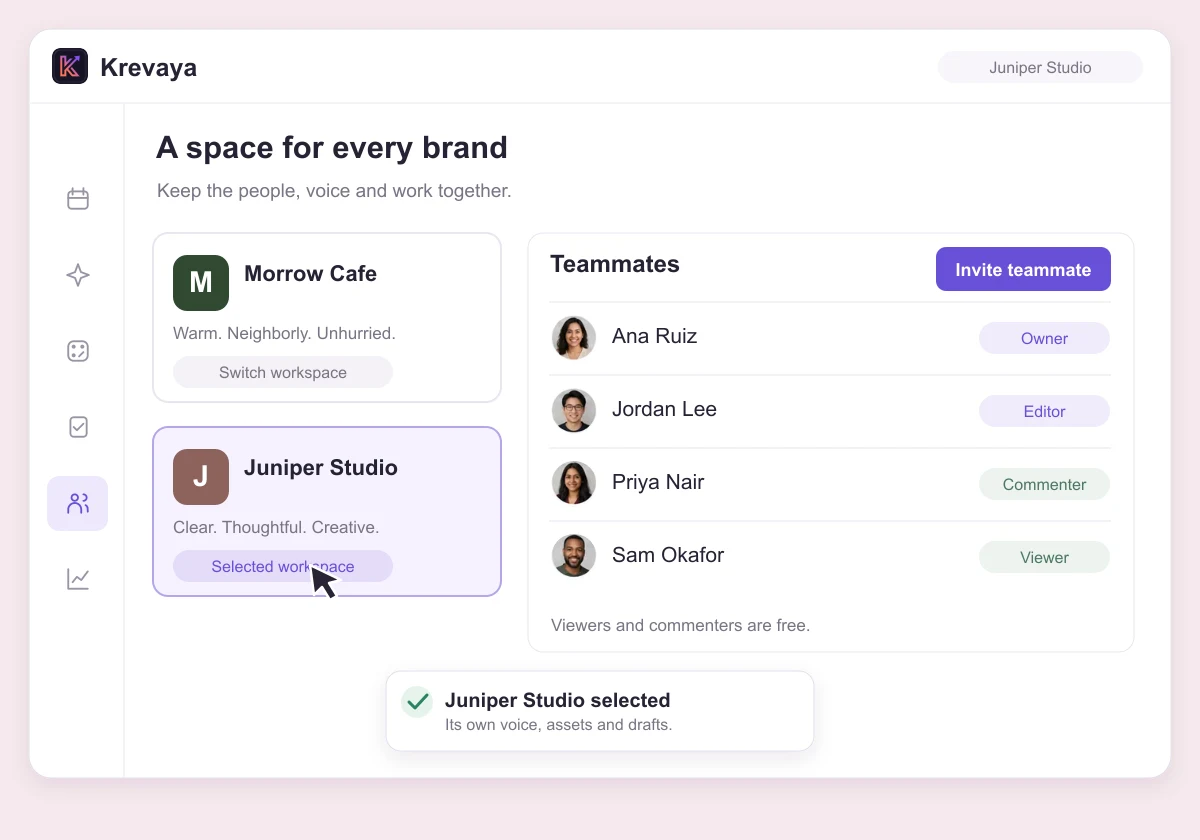
Keep each brand's voice, assets, and drafts in its own workspace. Invite teammates to create, comment, and review. Viewers and commenters are free on every plan.
See plans and seatsTwo fictional brand workspaces, Morrow Cafe and Juniper Studio, appear beside a teammate list with owner, editor, commenter and viewer roles. A cursor switches brands and then returns to Morrow Cafe.
Post and account insights sync back within the hour. See reach by channel, followers, and your top posts, next to the creators you track. When you schedule, Posts suggests best times learned from your own engagement.
See the analyticsAverage reach by channel
A closer look at the workflow. Illustrative demos with sample content.
See all featuresConnect your channels, make your first post in Studio, and let Krevaya AI draft the next ones for your review.
Try a plan for 7 days. Card required.
Yes. Create an account and choose your plan. Choose Essentials for Studio, scheduling, analytics, and Convo without AI, or Plus and higher for Krevaya AI. Existing early-access invitations keep their promised terms.
Essentials brings together Krevaya Studio for images, carousels, and videos, Krevaya Posts for review, scheduling, and publishing, and Krevaya Convo for Instagram and Facebook conversations. Plus and higher add Krevaya AI for ideas and writing. Plus starts at $29 per month and includes Convo automations, AI credits, premium templates, and MCP and API access. Credits and connected-account limits vary by plan.
Yes. Krevaya Convo is included on every paid plan, starting with Essentials. Build visual flows that respond to keyword comments, incoming DMs, and Instagram Story replies. Share links, collect contact details with consent, tag leads, and hand conversations to your team. Comment-triggered flows send one opening private message; follow-ups require the person to reply or use a response button and stay within Meta’s messaging window. Connect an eligible Instagram professional account or Facebook Page with messaging permissions to get started.
For everyday social content, Studio brings template-based design, editable layers, images, carousels, and short-form video into the same workspace as Posts’ calendar, approvals, and publishing. It’s an alternative to keeping separate design and scheduling subscriptions. Specialist photo retouching and advanced film production may still call for a dedicated editor.
Krevaya AI is your assistant inside Krevaya, available on Plus and higher plans. Ask it in plain language for ideas, drafts, a plan for the week, or what is waiting for your review; it works from your brand's voice and connected channels. Krevaya AI's Routines draft for you on a schedule, from a feed, or when one of your posts takes off, and every draft waits in Posts for your review.
Setup is three steps: connect a channel, set up your brand kit (name, logo, color, and topic), and schedule your first post. Each takes about a minute, and you can skip any of them. Connecting your own AI tool is optional.
Yes. Use Krevaya AI on its own, or connect another AI tool to your drafts, creations, and schedule. Claude, ChatGPT, and Gemini connect through MCP; Muse uses a custom connector to the Krevaya API. MCP and API access are included on Plus and higher plans. Any subscription required by the external AI tool is separate. Connection guides cover the setup and availability for each tool.
34 channels in the catalog. Available now: Facebook, Instagram, Threads, LinkedIn, Bluesky, X, Mastodon, Tumblr, TikTok, YouTube, Pinterest, Telegram, LINE, Microsoft Teams, Mattermost, Google Chat, Lemmy, Discourse, Circle, WordPress, Ghost, Dev.to, Hashnode, Beehiiv, Buttondown, Kit, Listmonk, Pixelfed and Dribbble. Available publishing formats depend on the channel and your connected account, and 1 channel (Reddit) is in their platform's review. Discord, Slack, Whop and Vimeo are coming soon and cannot be connected yet. Create, review, and schedule your content from the same workspace.
Yes. You can edit the copy, change the creation, and check each draft in the review queue. Review-first publishing is the default. Auto-publish is off unless you turn it on for a brand, and it never applies to Pinterest or Tumblr, where you approve each post.
Eligible accounts can try a plan for 7 days at $0 with a card required. Unless you cancel, it renews at the selected plan’s price. Essentials starts at $19 per month for Studio, scheduling, analytics, and Convo. AI writing and MCP access start with Plus at $29 per month.
A few more things to read before you decide.
Practical guides to social media automation, AI content, and publishing with a point of view. Built for creators, founders, and small teams.
Krevaya vs Buffer · Krevaya vs Hootsuite · Krevaya vs SocialPilot
Post and hook generators, character counts, and posting windows. No account needed.
More creating. Less busywork. We’re giving away year-long and lifetime subscriptions. Your next chapter could be on us.
Follow us wherever you spend time. We share giveaway announcements and how to enter on our social channels.
Each giveaway has its own entry details. Following alone does not enter you.
Tell us what you want to create, plan, or publish.
Choose your plan and bring your first idea to life.