Guide
Social media approval workflow: roles, deadlines, and a final check
Create a clear social media approval process with owners, review states, deadlines, exception handling, and a free pre-publish checklist for small teams.
Publish
Every draft lands in a review queue where you approve, edit, or reject it in one click. Auto-publish is opt-in for each brand, and you can switch it off again at any time.
Sign up with Google or Microsoft, then choose your plan.
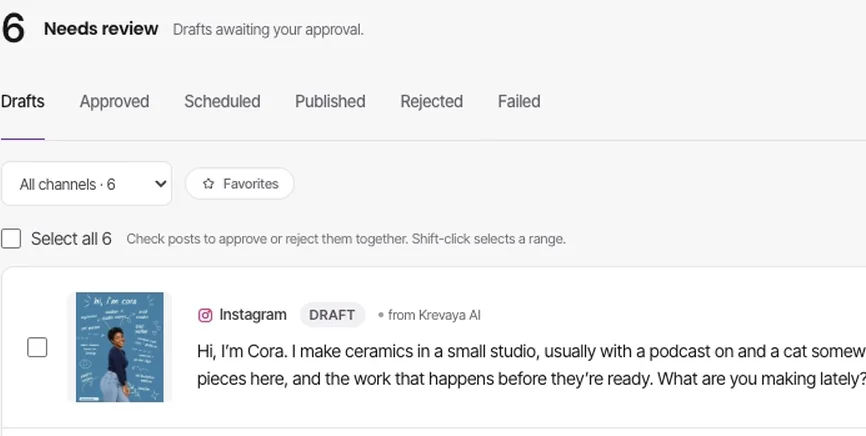

Approve, edit, or reject in one click from a single queue
One details panel for every post, in the Posts list and on the calendar
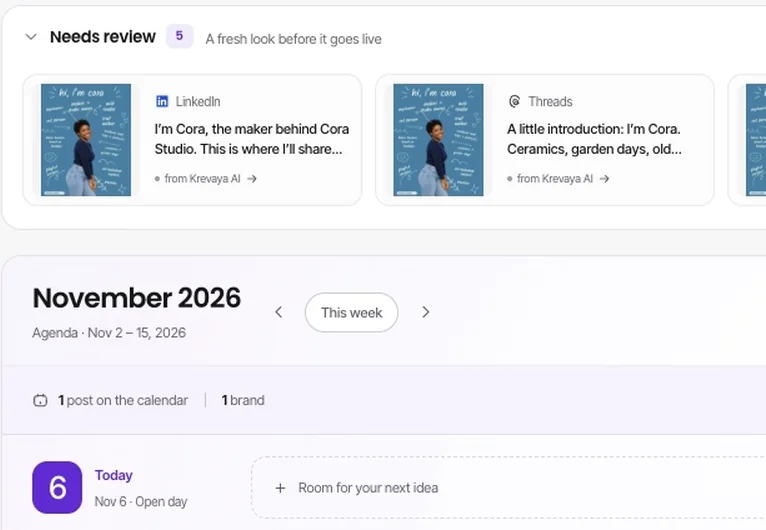
A Needs review tray: drag a draft onto the calendar to approve and schedule it in one move
A line on each post that says where it came from: Krevaya AI, your AI, Studio, an automation, or an import
Auto-publish stays off until you turn it on for a brand
Edit any draft before it reaches your audience
Drafts waiting for you sit in a Needs review tray. Drag one onto a time in the week view, or onto a day in the month view, and it is approved and scheduled in one move. TikTok, YouTube and Pinterest drafts have settings to fill in first, so they open in the panel instead.
Brands and teams
Use Krevaya AI for a first draft, make the changes yourself, and give the team one place to see what’s ready.
In each brand’s workspace
Drafts land in your queue and wait for you. In review mode, only the posts you approve are published, so your audience sees what you signed off on.
When a draft is nearly right, open it, tighten the opening, and approve it without generating a new one. Your edits also teach the voice model what you want.
Open a post from the Posts list or the calendar and the same details panel opens: edit the copy, change the media, open the creation in Studio, approve, schedule, or reject with a reason. Approve & schedule does both in one step, and if the time you picked is taken, the post stays a draft instead of being left approved.
Posts carry a short provenance line: from Krevaya AI, from your AI, you in Studio, from an automation, imported, or from the content bank. You can tell at a glance which drafts were written for you and which you made yourself in Studio.
When you are ready, switch a brand to auto-publish, within its daily caps. Switch it back whenever you want. Routine drafts always wait for you, even on a brand that auto-publishes, and so does every Pinterest and Tumblr post.
Step-by-step articles from The Krevaya Fieldnotes.
Guide
Create a clear social media approval process with owners, review states, deadlines, exception handling, and a free pre-publish checklist for small teams.
In Settings
Drive Krevaya from n8n, Make, or your AI agents.
Create your account, choose a plan, and start making.
Try a plan for 7 days. Card required.