Krevaya Posts
Make one post fit every channel
Write the post once and each channel gets its own version, in the format it takes. Check every caption and preview, save your usual channels as Lineups, and see what goes out next on one calendar.
Sign up with Google or Microsoft, then choose your plan.
Let the creation introduce Tessa. Add a few details in her own voice.
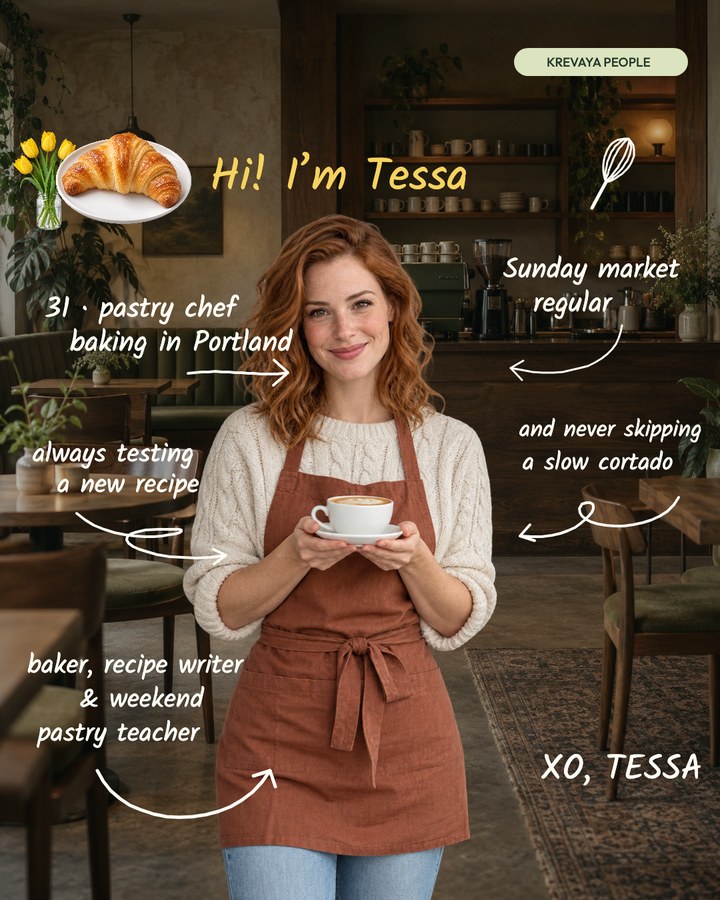
Hi, I’m Tessa. I’m a pastry chef, recipe writer, and weekend pastry teacher in Portland. Usually testing a new recipe, browsing the Sunday market, or taking my time over a cortado. A little introduction to the person behind the pastries. Glad you’re here.
Post to the channels you already use


Plan a week of posts from the calendar
Start from a day on the calendar and pick the channels. A tall photo becomes a Story and a Pin, a clip goes out as a Reel, a Short, and a TikTok, and Krevaya AI writes the copy when you ask. AI help uses AI credits.

Read the walkthrough
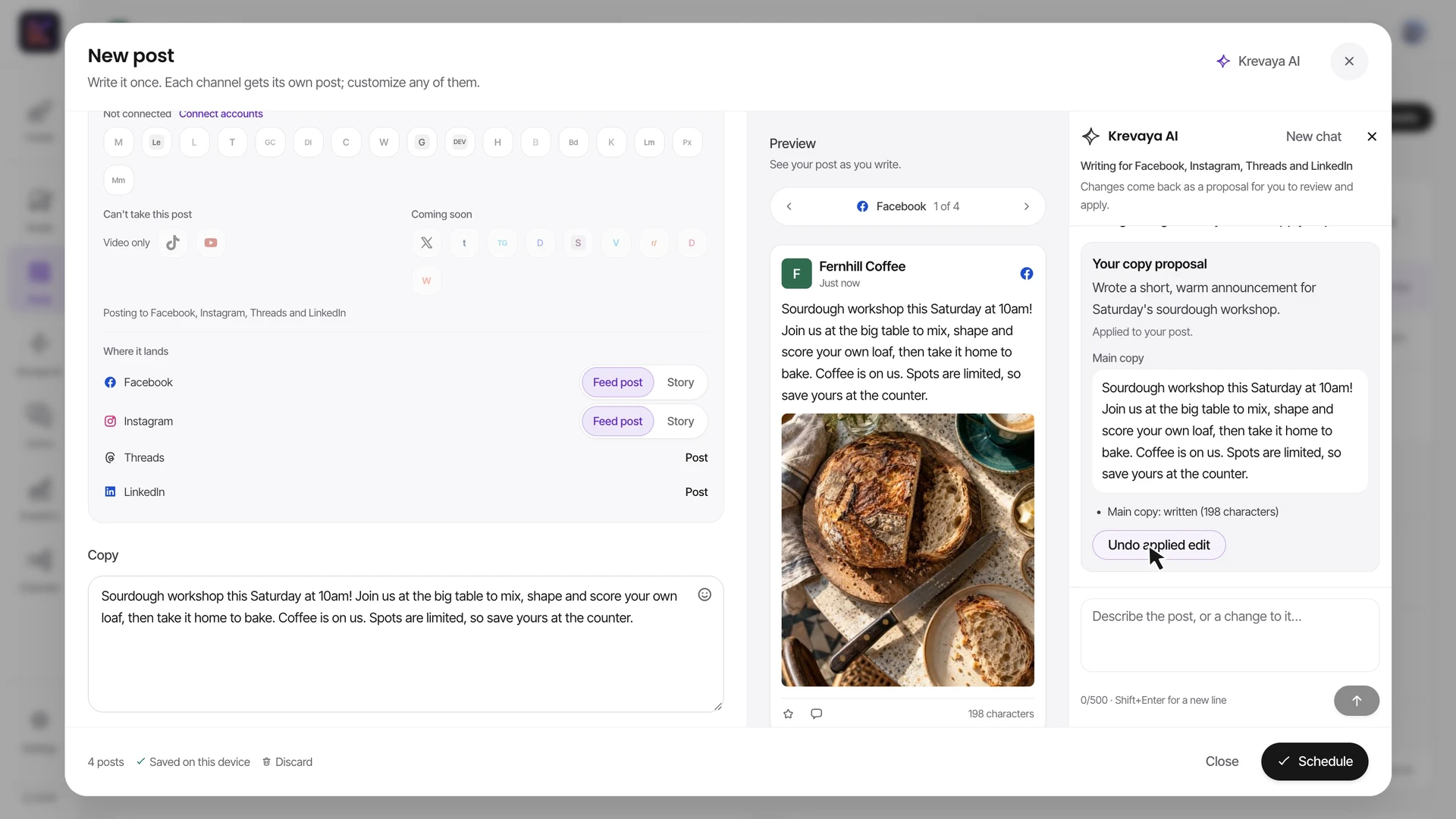
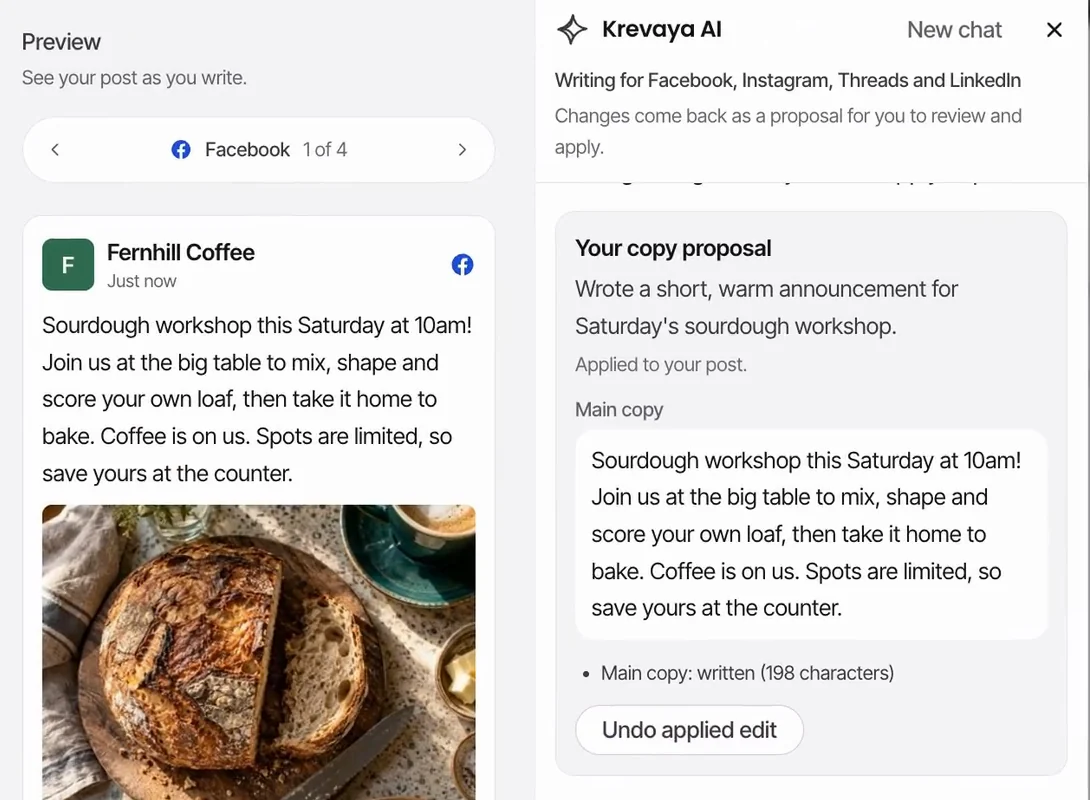
A sample café, Fernhill Coffee, plans its week in Krevaya Posts. From Thursday on the calendar, the composer opens at 9:00 AM with Facebook, Instagram, and Threads ticked; LinkedIn is added and a photo of a sourdough loaf comes from the library, so Facebook and Instagram take it as a feed post. In the composer, Krevaya AI is asked “Write a post announcing our sourdough workshop this Saturday at 10am. Warm and short.”, then “Give LinkedIn its own version with a bit more detail about what people learn”, then “Add Instagram hashtags”. Each answer is a proposal that changes nothing until Apply to post; the copy, LinkedIn’s own version, and Instagram’s hashtags fill in, and Schedule puts four posts on Thursday. Next, three library photos become a carousel on Instagram, Threads, and LinkedIn, a multi-photo post on Facebook, and a post on Bluesky, with a caption typed by hand and added to the queue at each channel’s next free slot. A tall photo becomes a Story on Instagram and Facebook, a Pin, and a Threads post for Saturday. A video goes out as an Instagram Reel, a Facebook video, a Threads video, a Video Pin, a TikTok, and a YouTube Short on Friday, with its caption from Krevaya AI: “Write a caption for this clip of our morning coffee routine. End with a question.” Last, the week is reviewed: Thursday’s Instagram post opens with its preview, copy, hashtags, and Reschedule, and the List shows every scheduled post. The film plays at 1.5× speed, and Krevaya AI answers faster here than a live model call.
Each channel gets the format it takes
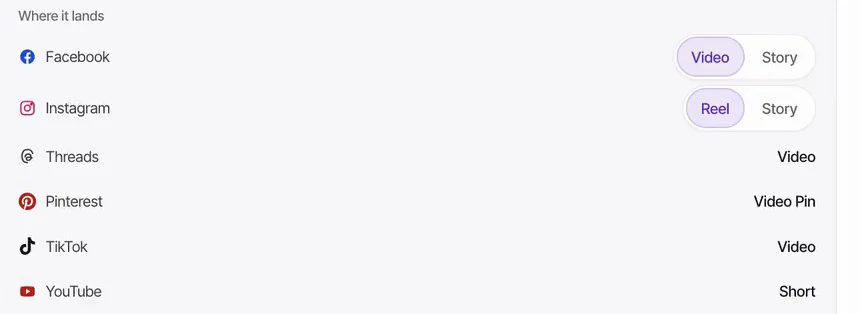
Pick the channels once and the composer shows where the post lands on each: a Reel or a Story, a Video Pin, a Short. Change a placement where a channel offers a choice.
- A tall photo becomes a Story and a Pin
- A clip goes out as a Reel, a Short, and a TikTok
- Formats and account requirements vary by channel
Ask Krevaya AI for the copy
Krevaya AI in the composer proposes the text, a channel’s own version, or Instagram hashtags. Nothing changes until you apply it, and Undo puts your copy back.
- Writes for every channel you picked
- A longer version for LinkedIn, hashtags for Instagram
- AI help uses AI credits
Save your usual channels as a Lineup
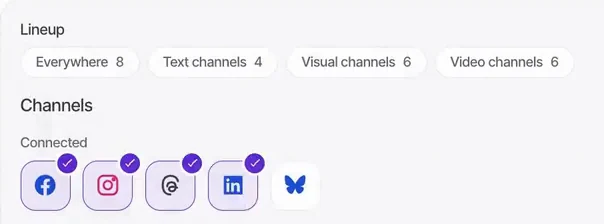
Name the group, put the channels in order, and leave time between them if you like. Each channel still gets its own post to review.
- Starter Lineups from what you connect: Everywhere, Text, Visual, and Video channels
- Pick a Lineup in the composer, in Studio, or for a Routine
- Name one from the API or MCP
Questions about Posts
Can I schedule without using AI?
Yes. Write your own caption, add your media, and choose your channels and time. Calendar and scheduling are included on Essentials and every AI plan; account and posting limits depend on your plan. Compare plans.
Does every channel support the same formats?
No. Formats, media limits, and account requirements vary by channel. Reddit is currently subject to platform review restrictions. Check your channel’s page for the supported formats and connection requirements.
What happens after I approve a post?
In Review mode, approval makes the post eligible to publish at an available slot. To choose a specific time, use Schedule or Approve & schedule, then find the post on the calendar. Off mode pauses automatic publishing, including scheduled posts. See how review works.
How do I know a post went out?
Drafts, scheduled posts, and publishing results stay together in Posts. After a post goes out, check its status and open the live-post link when available. A held or failed post shows the reason, so you can decide what to do next. You can keep one channel’s version in draft while the others are scheduled.
Can I turn on automatic publishing?
Auto-publish is an opt-in setting for each brand. Pinterest and Tumblr always require your approval for each post. Drafts created by Routines also stay in Posts for your review.
Can my AI assistant help with the schedule?
Yes. Connect a supported assistant through MCP, or use the API to work with your drafts and schedule. MCP and API access are included on Plus and higher plans. Find your assistant’s setup guide.
Read the publishing guide. Considering a different scheduler? Compare Krevaya with Postiz, Buffer, and Hootsuite.
Krevaya Posts
Put next week’s posts on the calendar
Create your account and choose a plan.
Try a plan for 7 days. Card required.