Krevaya Studio
Edit images and video, layer by layer
Start from a template, your own media, or something AI made. Edit text and image layers, build carousels, trim video, and adjust the sound in Krevaya Studio, then bring the finished creation into a post. Manual edits don’t use AI credits.
Sign up with Google or Microsoft, then choose your plan.
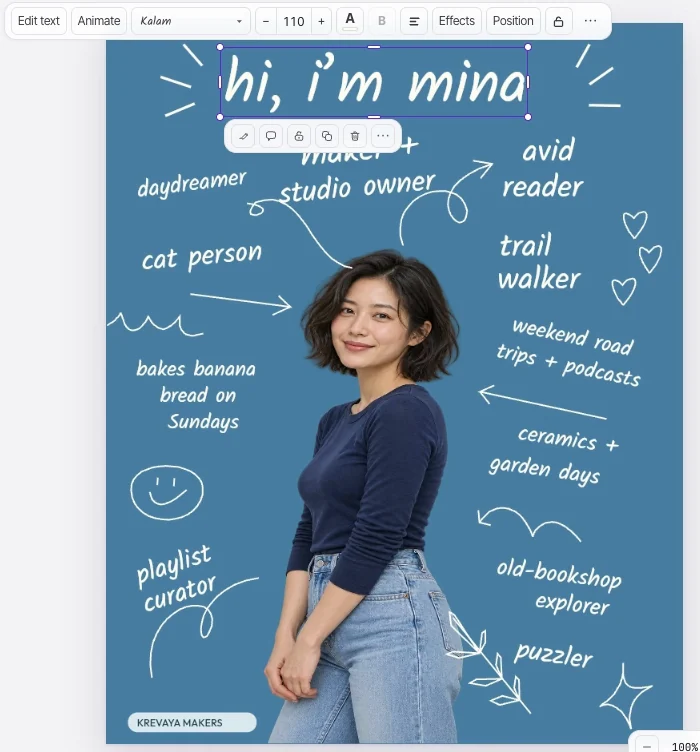
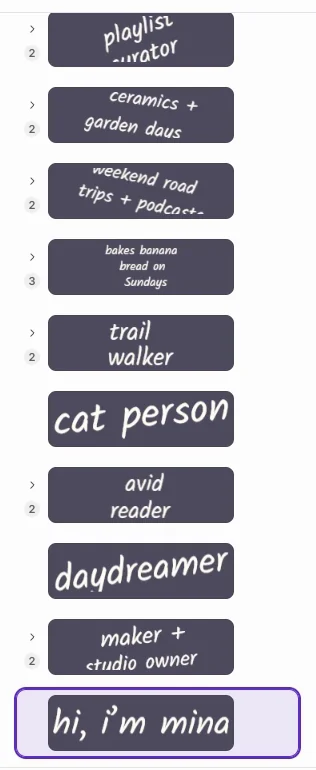
Layers you can move
Every word, photo, and shape stays separate, so you change one without rebuilding the rest.
Templates to start from
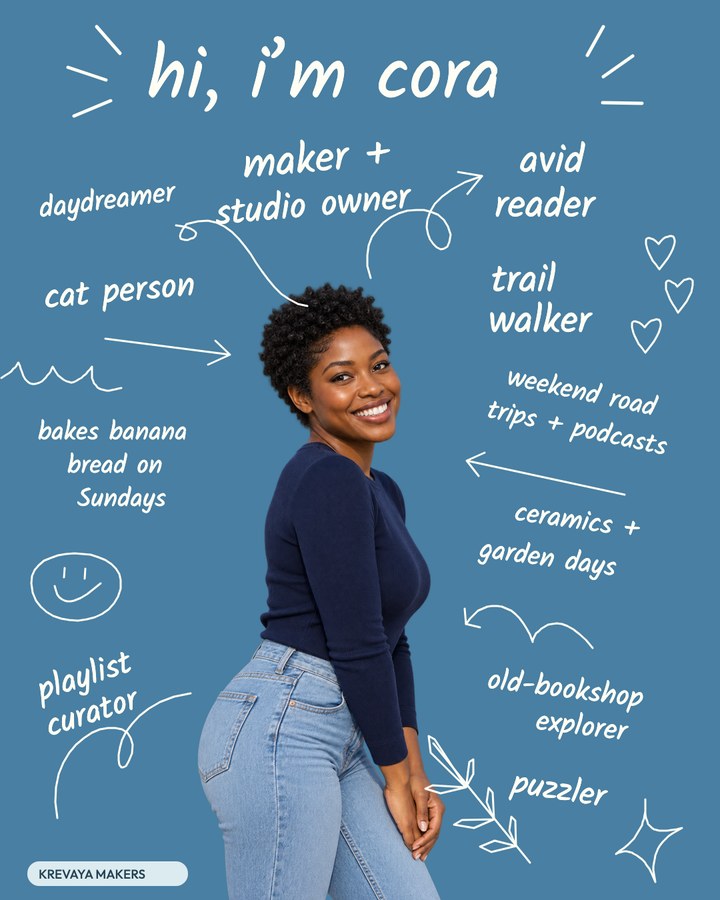
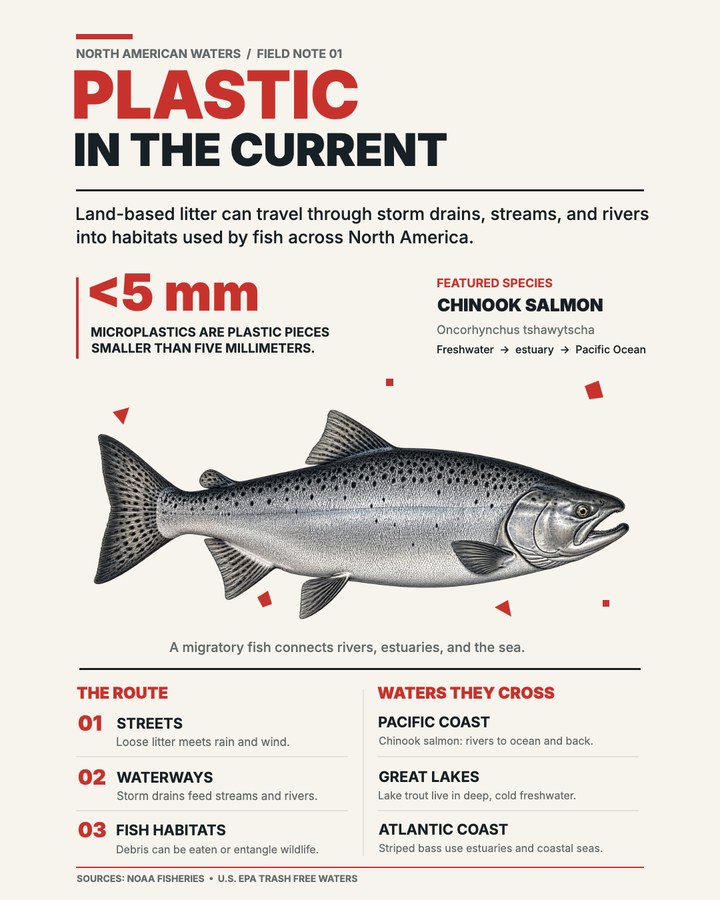
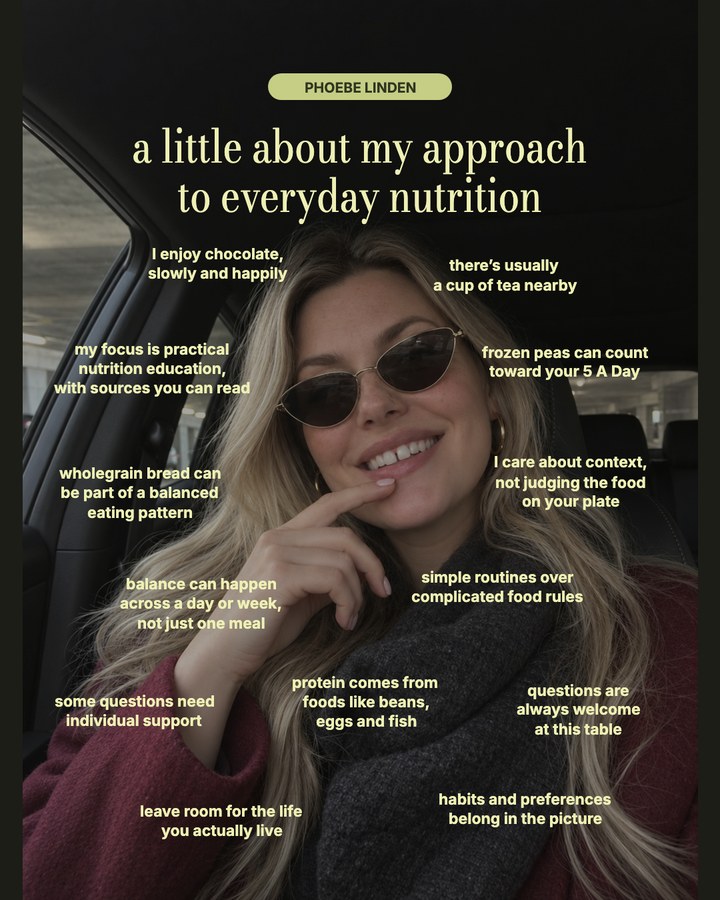
Business posts, creator introductions, carousels, and infographics, with accents for your brand colors.
Video and music together
Images, video clips, and music in the same editor, ready for a post.
Straight into a post
Choose Post this to take the finished creation into the composer, with a carousel’s pages in order.
Hand edits use no AI credits
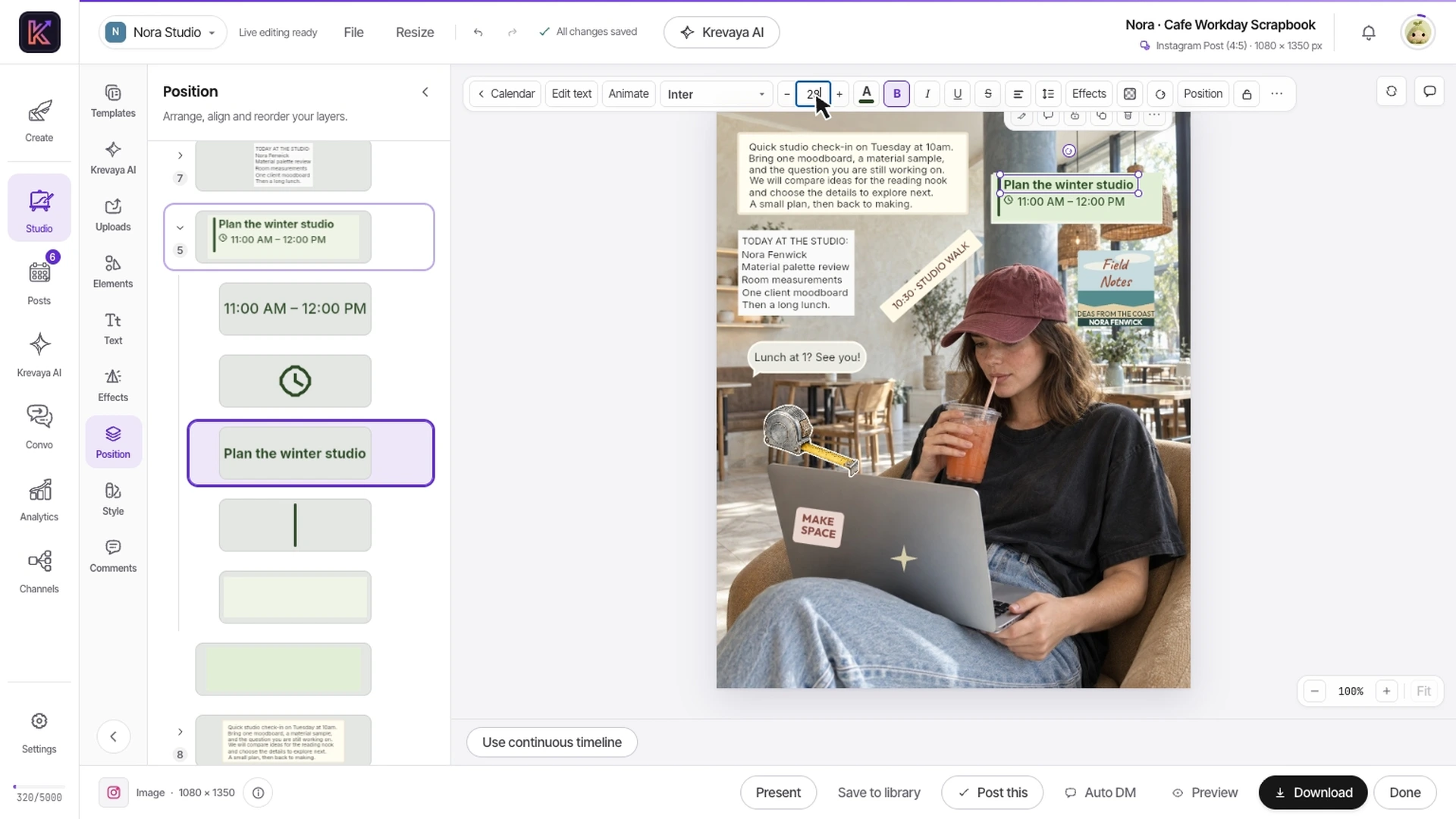
Rewrite a headline, resize and move its layer, and download the image. Then trim footage, animate text, set the sound and fades, and start a video export. Moving a layer, rewriting text, cropping a photo, or trimming a clip uses no AI credits.

Explore the workflow
Follow two real templates through Krevaya Studio. Rewrite a headline, resize and move its independent layer, and choose an image download size in Cafe Workday Scrapbook. Then trim footage, edit and animate text, adjust audio and fades, and start a video export in Café Serif Perspective. These hands-on edits do not use AI credits.
Edit a carousel as one creation
Open every page together and change the text, photos, and layout on each one. Keep what you like on the others.
- Rewrite a headline without replacing the photo
- Move, crop, group, and arrange individual layers
- Apply your brand colors to a template’s accents
Ask Krevaya AI to change the layers
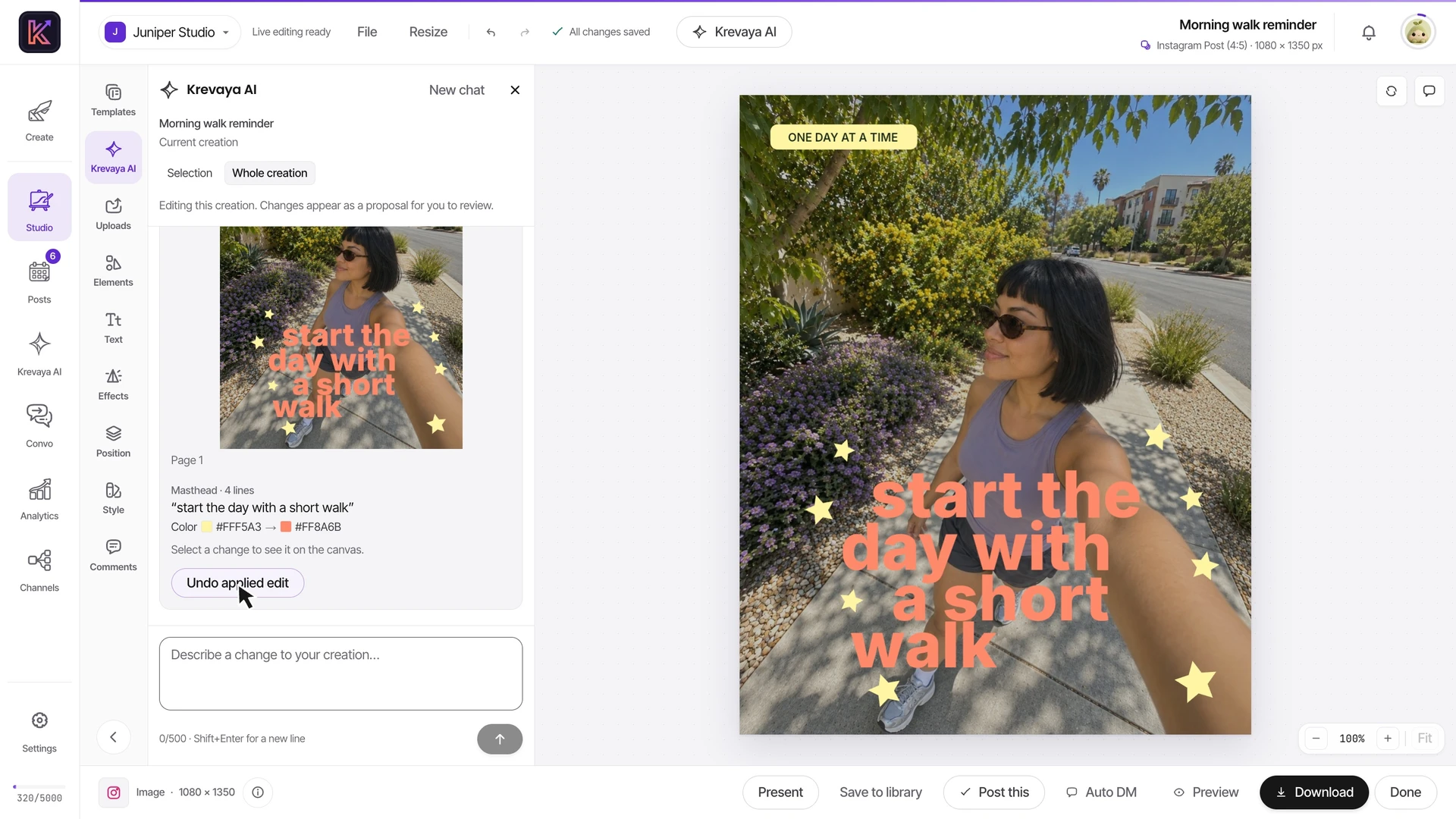
Describe the edit beside the canvas. Krevaya AI changes the layers already there, shows a preview, and waits for you to apply it; Undo puts the original back. Images, carousels, and videos. AI edits use AI credits.
Read the conversation
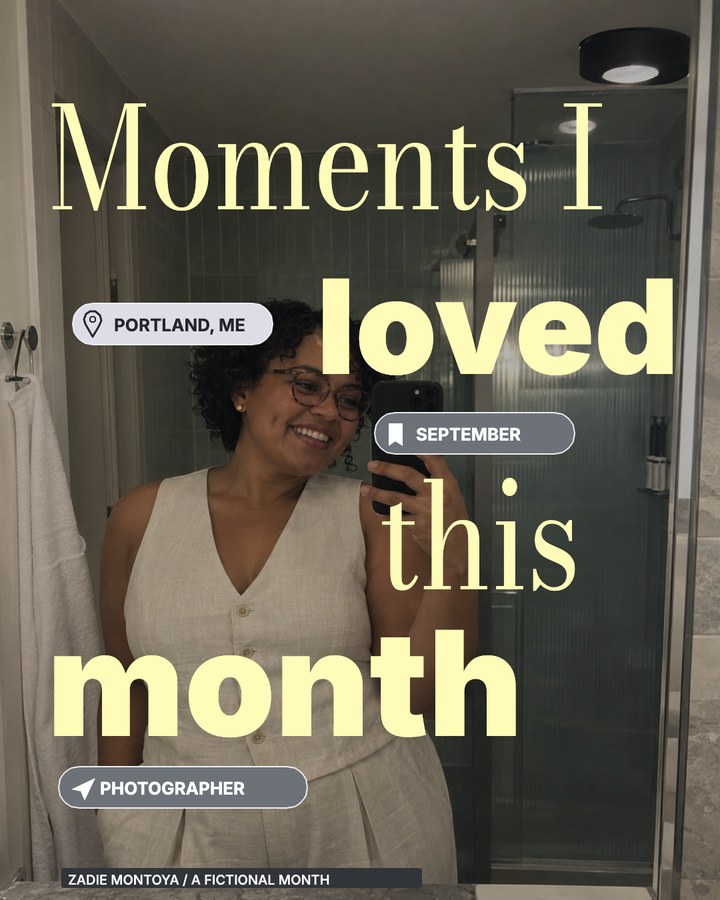
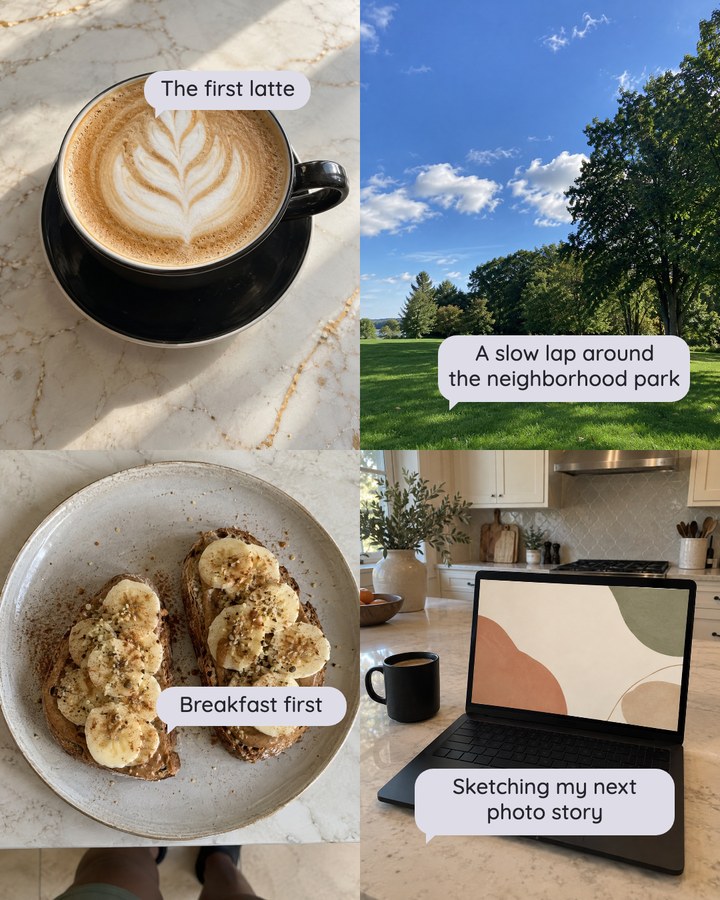
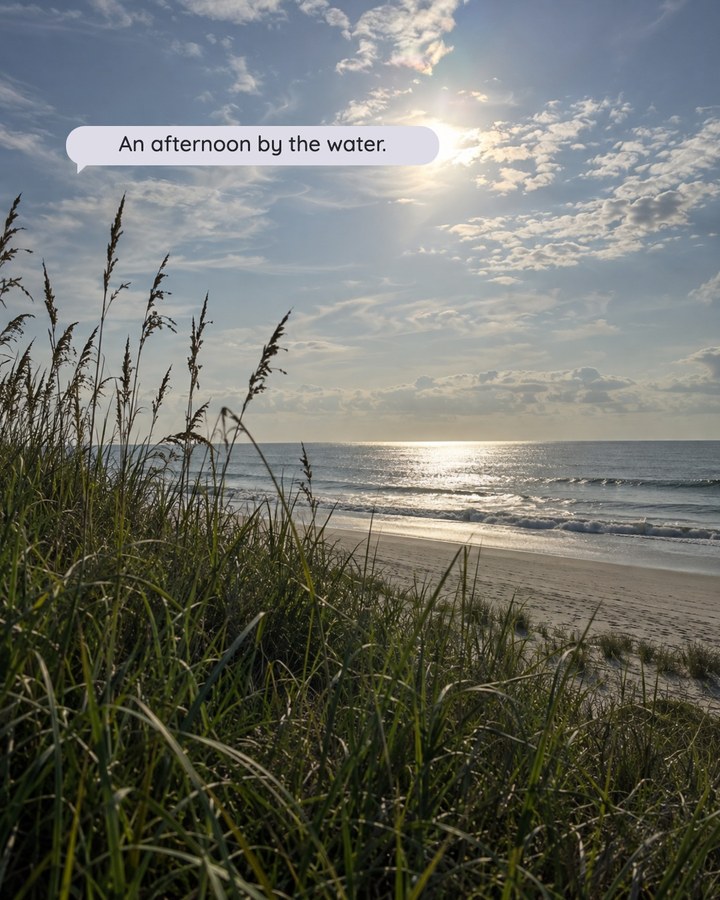
Three creations edited by asking Krevaya AI in Studio. In Sunlit Step Reminder, the request “Change the headline to ‘start the day with a short walk’” rewrites the four headline lines, and the follow-up “Now make the headline coral” recolors them. In the six-page Lemon Monthly Photo Journal carousel, “Make this my October recap” changes the cover’s month, then on page 6 “Change the closing to Ready for November” updates the closing title and sizes it to fit. In the Sunlit Daily Vlog video, “My day starts at 6am now. Change every time to an hour earlier.” moves the title range and all four timestamps, with a preview frame for each moment. Each proposal lists its changes in words. Pointing at one outlines it on the canvas, and in the video, selecting one moves the playhead to that moment. Each proposal is reviewed before it is applied. Waiting time is shortened in this recording.
Start from a template
Business posts, creator introductions, carousels, and infographics. Open one in the library to see every page.

Questions about Studio
Do I need AI to use Studio?
No. Start with a template, a blank creation, or your own photos and clips. If AI is part of your process, use Krevaya AI, bring files from another tool, or connect your agent through MCP. You can move between AI and manual work as the project needs it.
Do manual edits use AI credits?
Moving a layer, rewriting text yourself, changing a color, cropping a photo, or trimming a clip does not use AI credits. AI generation and AI-assisted actions have their own credit costs. Available features and export limits depend on your plan.
Can I ask Krevaya AI to change a creation?
Yes. Open Krevaya AI beside the canvas, choose a selection, a page, or the whole creation, and describe the change. It edits the layers already there, such as the copy, type, colors, position, and size, and shows a preview before you apply it; Undo puts the original back. For a video, ask for captions, short clips, a 9:16 reframe, cleaner audio, or b-roll from your library. The result stays in layers you can keep editing yourself, so a small fix never means generating the whole thing again. AI edits use AI credits.
What stays editable?
Text, photos, shapes, and other objects added as separate layers stay independent in the Studio creation. An uploaded or AI-generated image is an image layer; words already baked into that image do not automatically become editable text. Keep the Studio creation when you want to make changes later.
Can I edit a whole carousel?
Yes. A carousel opens as one creation with multiple pages. Edit the text, photos, and layout on each page, then download your work or use Post this to bring the pages into the composer in order.
What can I export?
Download still creations as PNG, JPG, or WebP, and export short videos as MP4 for Reels, Shorts, or TikTok. Video export allowances depend on your plan. Long-form video, up to 10 hours in 4K, is still listed as coming soon.
How does a creation become a scheduled post?
Choose Post this in Studio to bring your work into the composer. Add your caption, choose the connected channels, check each preview, and set a publishing time. Review and approve the post before it goes out; available formats depend on the channel.
See the video editing guide or compare plans. Choosing a design or video tool? See Krevaya as a Canva alternative, a CapCut alternative, or a Premiere Pro alternative, or compare social media and video tools.
Krevaya Studio
Make your next creation in Studio
Images, carousels, video, and sound. Studio is included on every paid plan.
Try a plan for 7 days. Card required.