Skip to content
Cursor + Krevaya

Schedule social media posts from Cursor

  • Hosted MCP server, one config entry, nothing to install
  • Draft, review, and schedule by asking, from your editor
  • Seven channels: Instagram, TikTok, Pinterest, Facebook, Threads, LinkedIn, Bluesky

Krevaya is the review-first content workspace Cursor drives through our hosted MCP server. Drafts wait for your approval; auto-publish is opt-in. Last updated October 2026.

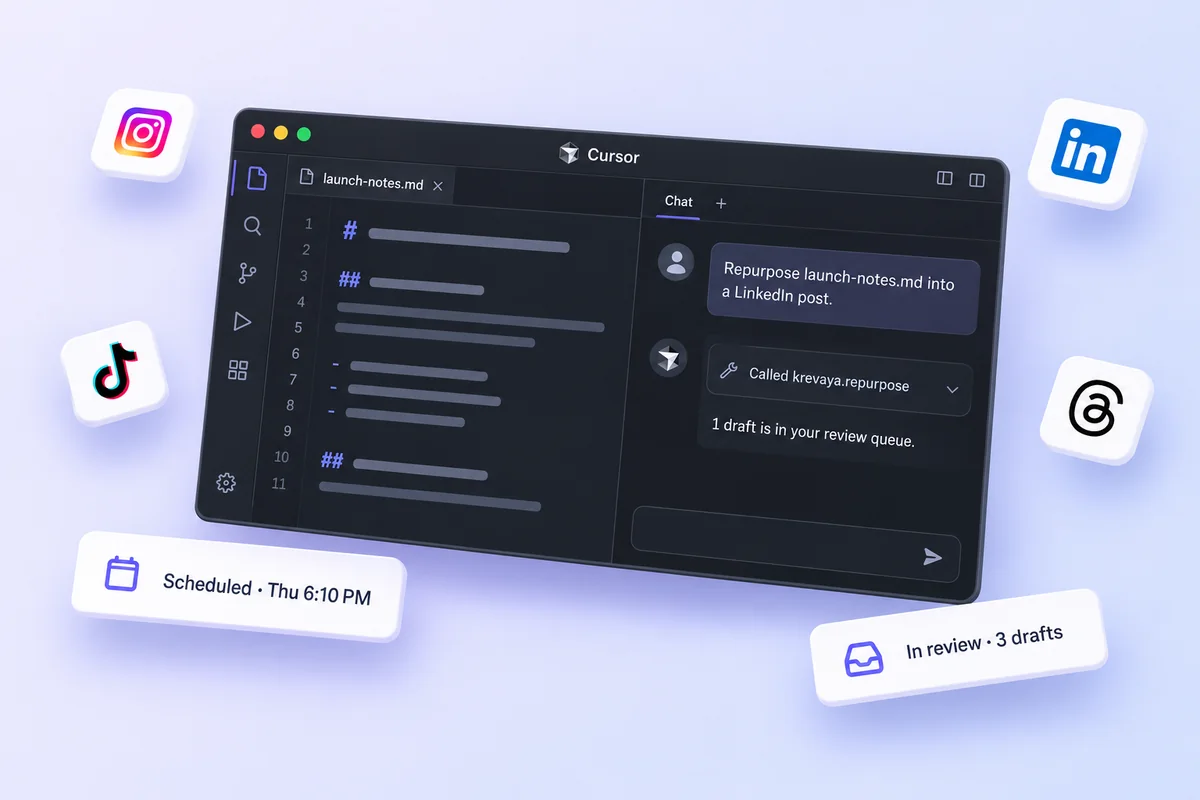
Cursor connected to Krevaya: a request in Cursor, Krevaya tool calls, and a scheduled post

How do I connect Krevaya to Cursor?

Mint a key, paste one snippet, and ask. Cursor discovers the Krevaya tools your key allows and calls them for you; nothing publishes until you approve it.

1Connectabout a minute

Add Krevaya to Cursor

Paste this with a key from Settings → API keys. Give the key only the scopes Cursor needs.

.cursor/mcp.json
{ "mcpServers": { "krevaya": {
  "url": "https://api.krevaya.com/mcp",
  "headers": { "Authorization": "Bearer krv_..." }
} } }

In the project's .cursor/ folder, or ~/.cursor/mcp.json for every project.

2Askreview-first

Then just ask Cursor

Once connected, Cursor calls the Krevaya tools. Approved and scheduled posts publish on time, even after you close it.

Check my Krevaya queue, approve the drafts that sound like me, and schedule them for the best times.

Done. Three drafts approved and scheduled: Tue 9:00 AM, Thu 6:10 PM, Sat 10:30 AM. One draft rejected as too salesy, with the reason noted. Nothing has published yet; the scheduled posts go out at those times.via Krevaya · get_queue_summary, approve_post, reject_post, get_best_times, schedule_post

Also try
  • What’s waiting for my review?
  • Draft next week from what’s trending
  • Who should I reply to this morning?
  1. Mint a key in Settings → API keys. Pick the scopes Cursor should have; a read-only key can look but never publish.
  2. Add the server to .cursor/mcp.json, as above.
  3. Cursor discovers the Krevaya tools, filtered to your key’s scopes, plus four ready-made prompts.
  4. Ask in plain language. Drafts land in your review queue; scheduled posts publish on time.

One connection powers every channel you run

Connect your accounts in Krevaya once. From then on Cursor can draft for any of them, and Krevaya publishes at the time you set.

InstagramTikTokPinterestFacebookThreadsLinkedInBluesky

What can Cursor do with Krevaya?

Write, review, design, schedule, and measure, all through the Krevaya tools it discovers once the server is added.

Ask in plain language

Tell Cursor what to draft, approve, or schedule. It calls the Krevaya tools for you; no menus, no forms.

Review-first, always

Drafts land in your review queue. Nothing publishes until you approve it, and auto-publish is opt-in per pipeline.

Seven channels

Instagram, TikTok, Pinterest, Facebook, Threads, LinkedIn, and Bluesky, from one connection.

Plan and schedule ahead

Draft a week from what's trending, pick the best times from your own engagement history, and schedule.

Design and video templates

Copy a video template into a design, change titles or footage one layer at a time, and preview pages as images.

Stays in your account

Scoped keys: a read-only key can look but never publish. Tools are filtered per key, and you can revoke one in a click.

What is the Krevaya MCP server?

MCP (Model Context Protocol) is the open standard that lets AI assistants call real tools. Krevaya hosts a remote MCP server, so Cursor gets your whole content pipeline as tools without a local process. Read more on the MCP page →

How Cursor uses Krevaya

  • Add the Krevaya server to Cursor with the snippet above
  • Cursor discovers the tools your key allows, plus four ready-made prompts
  • It drafts, designs, schedules, or reads results through the same pipeline as the dashboard
  • You approve in the review queue, and scheduled posts publish on time
# Krevaya MCP server
URL:        https://api.krevaya.com/mcp
Transport:  Streamable HTTP
Auth:       Authorization: Bearer krv_...

# Tools, filtered to your key's scopes
read & triage · create · design · schedule & publish
media · measure · engagement · brand memory

# Ready-made prompts
content_ops · weekly_review · repurpose_source · plan_week

What can you ask Cursor to do?

Anything you would ask a teammate: name the channels, the time, and the tone, and Cursor handles the rest.

Launch

Ship a launch post

Draft a launch post for Instagram and LinkedIn about our new Friday hours, in my voice, and put both in my review queue.
Content calendar

Plan a whole week

Plan next week from what's trending in my niche and schedule the approved posts at my best times.
Repurpose

Turn a link into drafts

Repurpose this article into a Threads thread and a LinkedIn post. Make the thread contrarian.
Community

Answer the room

Who should I reply to this morning? Draft the replies in my voice and I'll approve them.

Cursor or Copilot · VS Code?

Both connect to the same server and see the same tools. The difference is where you work.

CursorCopilot · VS Code
What it isAn AI-first fork of VS CodeGitHub's assistant inside VS Code
Config file.cursor/mcp.json under mcpServers.vscode/mcp.json under servers, with type http
Best forTeams already on CursorTeams on VS Code with a Copilot plan

Other AI agents that work with Krevaya

Same server, same tools, same review queue. ChatGPT is the one gap: its connectors need OAuth, which Krevaya does not offer yet.

Frequently asked questions about Cursor and Krevaya

How does Krevaya work with Cursor?

Krevaya hosts a remote MCP server. Add it to Cursor with the snippet on this page and Cursor gets Krevaya's tools: list and triage drafts, create posts, draft a week, repurpose a link, design and edit video templates, schedule, and read results. Everything runs through the same review-first pipeline as the dashboard.

How do I connect Krevaya to Cursor?

Mint a key in Settings → API keys, choose its scopes, then add the server to .cursor/mcp.json. There is nothing to install on Krevaya's side; the server is hosted.

Do I need a paid plan?

MCP access is included on Krevaya's Plus plan ($29 per month) and up, with the same usage allowances as the rest of your account. Cursor's own requirements are set by Anysphere, not by Krevaya.

Can Cursor post while I'm away?

Only what you have approved. Drafts wait in the review queue; approved and scheduled posts publish at their time whether or not Cursor is open. Auto-publish is opt-in per pipeline, and you can turn it back off any time.

Is it safe? Does Cursor need my social media passwords?

No. Cursor talks to Krevaya with a scoped API key, and Krevaya publishes through each platform's official API with tokens encrypted at rest. A read-only key cannot publish at all. Revoke a key in one click and the connection is gone.

Which platforms can Cursor post to?

Any channel connected to your Krevaya workspace: Instagram, TikTok, Pinterest, Facebook Pages, Threads, LinkedIn, and Bluesky. Available formats depend on the channel and your connected account.

Cursor doesn't show the Krevaya tools. What should I check?

Three things: the key is sent as an Authorization: Bearer header, the URL is exactly https://api.krevaya.com/mcp, and the key's scopes cover what you are asking for, because tools are filtered per key.

Is it free to start?

Krevaya's Free plan does not include MCP access; it starts with Plus. Access is currently by invitation, so join the waitlist and we will be in touch when it is your turn.
Let Cursor run your content ops.

MCP access is included from the Plus plan up. Join the waitlist and we'll be in touch when it's your turn.

Join the waitlist