Schedule social posts across time zones without guessing the date
Use named time zones, verify the audience's local date, and check the final scheduling preview before a cross-region campaign goes live.
The short answer
Choose the audience's intended local publication date and time, record its named time zone, and convert that moment into the scheduler's displayed zone. Verify the full date in both places, not just the clock time. Before scheduling, confirm that the final preview converts back to the intended audience date and time.
What to take away
- Record the audience's full publication date, time, and named zone before converting into the scheduler's displayed zone.
- Check the calendar date independently: a Monday London release can require a Sunday Chicago slot.
- Convert the final preview back to the audience's zone after any timing change, then confirm delivery after publication.
Set the publication target in the audience's named time zone, convert it into the scheduler's displayed zone, and check the full date in the final preview. Don't approve the clock time alone: the correct slot can fall on the previous calendar day for your team.
Which audience's date should control the release?
Start with the constraint that determines publication. An announcement tied to London registration opening should follow London's release time. A discussion post for Chicago customers should follow a useful Chicago window that your team can support.
Record the intended publication as a complete instruction: year, month, day, local time, and named zone. Use Europe/London or America/Chicago, rather than an abbreviation such as CST or a note that says “our time.” Named zones account for location-specific clock changes; a fixed UTC offset doesn't preserve those rules.
Keep these decisions separate:
- Publication time: when the announcement becomes visible.
- Event time: when the event itself happens.
- Response coverage: when someone can answer questions.
A correctly scheduled announcement can still confuse readers if the caption gives an event time without a zone. Check those details independently.
If there's no fixed release deadline, choose a plausible audience window and test it. Our best-time-to-post guide explains how to compare similar posts using a consistent measurement interval and explicit time zones. Conversion establishes when a post will appear, not whether that moment will perform well.
How do you verify the date without hardcoding an offset?
Use a date-aware converter that accepts named zones, or a calendar that can display the same dated event in another zone. Enter the actual publication date, not today's date as a shortcut.
Chicago and London don't always change clocks on the same dates. A remembered hour difference can therefore be wrong for the campaign, even if it worked for a previous post. Crossing midnight creates a separate risk: a correct clock conversion may still land on a different calendar day.
Follow this sequence:
- Enter the audience target. Include the full date, local time, and named zone.
- Check the scheduler's displayed zone. Don't assume it follows your laptop, account, or current location.
- Convert into that zone. Use the campaign date so the converter applies the relevant clock-change rules.
- Read the converted date separately. Confirm the year, month, day, and weekday before checking the time.
- Convert back to the audience's zone. The result must match the original target exactly.
- Save both representations beside the post. A reviewer should be able to check the decision without reconstructing it.
UTC is useful as a common reference when tools display different local zones. You don't need to schedule in UTC, and it doesn't replace the audience's named zone.
For recurring posts, decide what should stay fixed: the audience's local clock time or the same UTC time. Those can diverge after a clock change. Recheck upcoming dated slots rather than copying an old conversion. If a local time repeats or disappears during a clock change, choose an unambiguous slot when possible; a fixed deadline needs the intended occurrence resolved before scheduling.
What does the Chicago-to-London check look like?
Illustrative example: All example dates and times below describe a Chicago team announcing a London event when registration opens just after midnight. This is a release constraint, not an engagement recommendation.
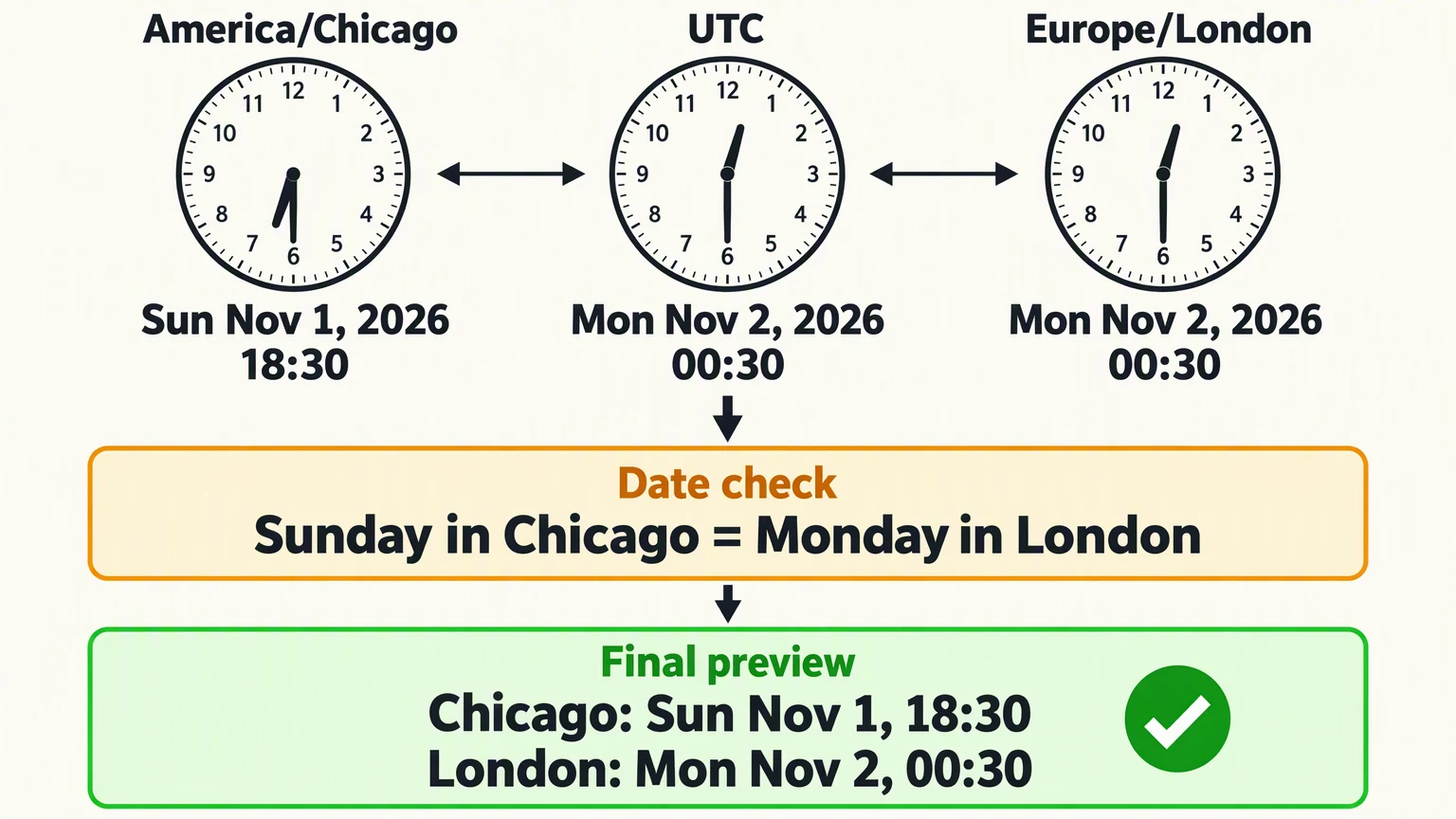
The announcement should appear at 00:30 on Monday, November 2, 2026, in Europe/London. A date-aware conversion gives these views of the same moment:
| View | Zone or reference | Date | Time |
|---|---|---|---|
| Chicago team | America/Chicago |
Sunday, November 1, 2026 | 18:30 |
| Common reference | UTC | Monday, November 2, 2026 | 00:30 |
| London audience | Europe/London |
Monday, November 2, 2026 | 00:30 |
The decision is the date: Monday in London is still Sunday in Chicago at this moment. If the scheduler displays America/Chicago, the team needs the Sunday evening slot. Selecting Monday evening would miss the intended release day in London.
Think of three aligned clocks labeled Chicago, UTC, and London. The connections between them mean “same instant,” not elapsed time. Chicago shows the previous date; UTC and London match for this particular date. London doesn't always match UTC.
Next comes a separate date check, followed by the final preview checkpoint. A Chicago preview should show Sunday, November 1, at 18:30. Converting it back to London should return Monday, November 2, at 00:30. Only then does the timing match the plan.
The team still needs to decide who can answer questions after registration opens. Correct conversion doesn't provide coverage. If immediate replies matter, assign an owner or discuss a different release time with the event owner.
What should the reviewer check before scheduling?
Keep the timing record with the approved content. Our content-calendar guide explains how to organize publication slots, owners, and review deadlines. You can add this worksheet to your own spreadsheet or planning document:
textCampaign / post:
Destination account:
Audience and release constraint:
Audience named zone:
Audience publication date and time:
Scheduler's displayed zone:
Converted scheduler date and time:
UTC reference, if useful:
Event date, time, and zone in the caption:
Response owner and availability:
Reviewer:
Final preview checked:
Recheck required after:
At the final preview checkpoint, confirm:
- The destination account is correct.
- The caption, visual, and link are the approved versions.
- The audience target includes a full date, time, and named zone.
- The scheduler's displayed zone is known.
- The preview converts back to the intended audience date and time.
- The event details in the content match the event's actual schedule.
- A response owner knows the coverage expectations.
Repeat the check after moving the post, changing its release date, or changing the scheduler's displayed zone. An earlier approval doesn't prove that a revised slot is correct.
A preview verifies the scheduling decision, not successful delivery. After publication, confirm that the post appeared on the intended account. Use the social-media automation guide to assign responsibility for approvals and failed deliveries as part of the broader workflow.
When is a manual workflow enough?
For an occasional announcement serving one audience, a named-zone converter, one planning row, and a final preview check may be sufficient. You don't need a multi-region scheduling system just to avoid a date mistake.
The tradeoff is maintenance. A manual record is easy to inspect, but someone must update it whenever the slot changes. A scheduling calendar makes a larger queue easier to manage, but moving a post can still change the audience's local date.
This method stops answering the question when the issue is audience strategy rather than conversion. A global campaign may need regional release windows, different wording, or local response coverage. Converting one instant correctly doesn't establish that every region should receive the same announcement then.
Decide whether the campaign needs a simultaneous release or regional releases before building the queue. Don't create repeated copies merely to cover every clock hour.
How do you carry the verified plan into Krevaya?
Krevaya's Calendar & Scheduling includes timezone-aware slots and best-time suggestions computed from your own engagement history. Use a suggestion to consider an audience window when the campaign has flexibility, not to override a fixed registration deadline.
Once you've completed the timing check:
- Place the approved post in the slot matching the verified publication moment.
- Check the slot's displayed date and time against your planning record, converting back to the audience's zone if needed.
- Review the calendar for scheduling conflicts and empty slots, which the calendar surfaces.
- If you drag the post to another slot, repeat the audience-date check. The queue re-flows automatically, so review the surrounding schedule too.
The calendar organizes publication slots. Your planning record preserves the release constraint, conversion, and response ownership. Keep those decisions in your team's workflow rather than expecting a timing suggestion to make them.
Krevaya is open for signup. Create your account and choose a plan to use this calendar workflow.
Frequently asked questions
Should I schedule in my team's time zone or my audience's time zone?
Define the target in the audience's named zone first. If the scheduler displays your team's zone, enter the converted date and time there. Verify that it represents the same moment by converting it back to the audience's zone.
What should I check when a recurring post crosses a daylight-saving change?
Decide whether the schedule should preserve the audience's local clock time or a fixed UTC time. Recheck upcoming occurrences using their actual dates and named zones, especially when the team's region and the audience's region change clocks on different dates.
Is it wrong if the scheduler shows the previous day?
Not necessarily. A release just after midnight in the audience's zone can fall on the previous day in the scheduler's zone. Convert the preview back to the audience's named zone and confirm that the full date and time match the target.
Sources & editorial details
Examples, diagrams, and downloadable worksheets are editorial teaching materials. They do not report customer results. Source-check dates appear below where recorded.
- Krevaya Calendar & Scheduling (checked October 30, 2026)
- Best time to post on social media: test two windows on your own account (checked October 30, 2026)
Created with AI assistance and published by Krevaya. Send corrections to [email protected].